Operating Hours
Croster Operating Hours allows you to create and manage department-specific support schedules. Configure operating days, business hours, time zones, holidays, and time formats to clearly display your team's availability, helping clients know when support is online and available.
The Create Operating Hours form allows you to define support availability schedules for specific departments. These schedules can be displayed to clients, helping them understand when your support team is available.
Each schedule is displayed in a table containing the following information:
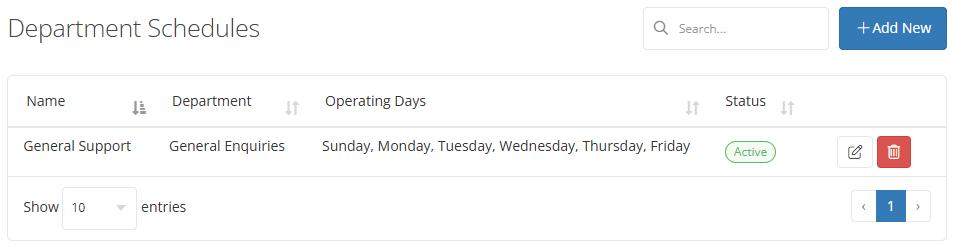
- Add New - Click the + Add New button to create a new operating hours schedule for a department.
- Name - Display Schedule name.
- Department - Display selected department name .
- Operating Hours - display selected days.
- Edit - Click the Edit icon to modify an existing schedule's settings, operating days, or department assignment.
- Delete - Click the Delete icon to permanently remove a schedule from the system.
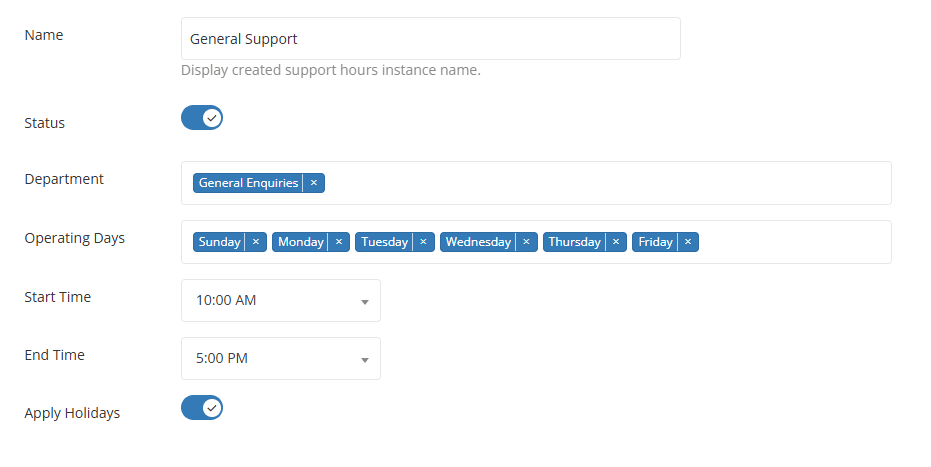
- Name - Enter a descriptive name for the operating hours schedule. This name is used to identify the schedule within the Croster admin panel.
- Status - Enable or disable the operating hours schedule.
- Department - Select one or more support departments that will use this schedule. Only the selected departments will display the configured operating hours.
- Operating Days - Choose the days of the week when department is available. You can select multiple days.
- Start Time - Specify when support availability begins for the selected operating days.
- End Time - Specify when support availability ends for the selected operating days. The time between the start and end time will be displayed as the department's available support hours.
- Apply Holidays - Enable this option if you want the operating hours schedule to respect configured holidays. When enabled, Support will be marked as unavailable on selected holidays.
The Display & Holidays section allows you to configure how Operating Hours are presented to clients and manage holiday schedules that affect department availability.
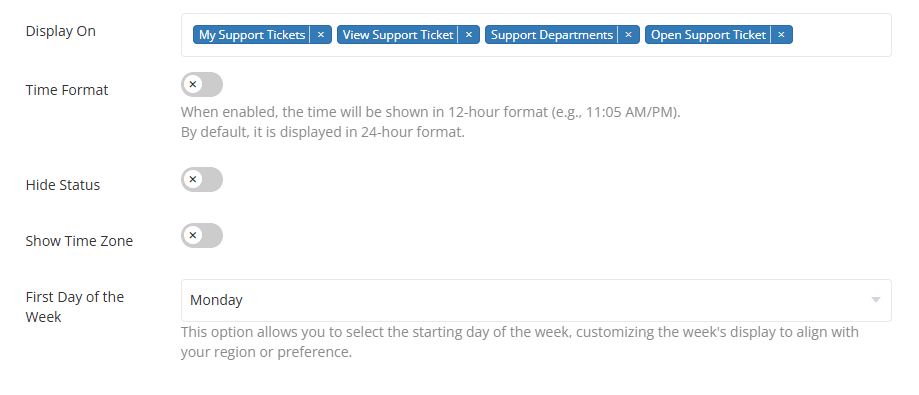
Choose where the Operating Hours widget will be displayed within your client area. You can select one or multiple locations.
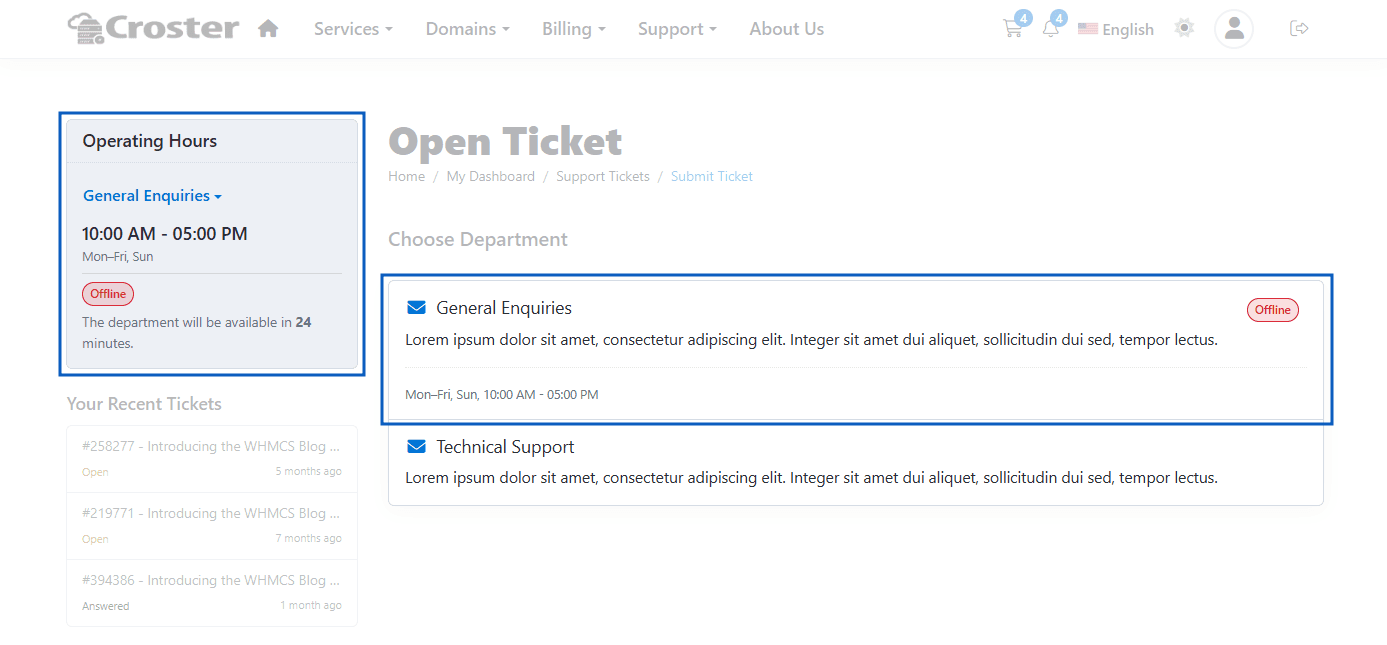
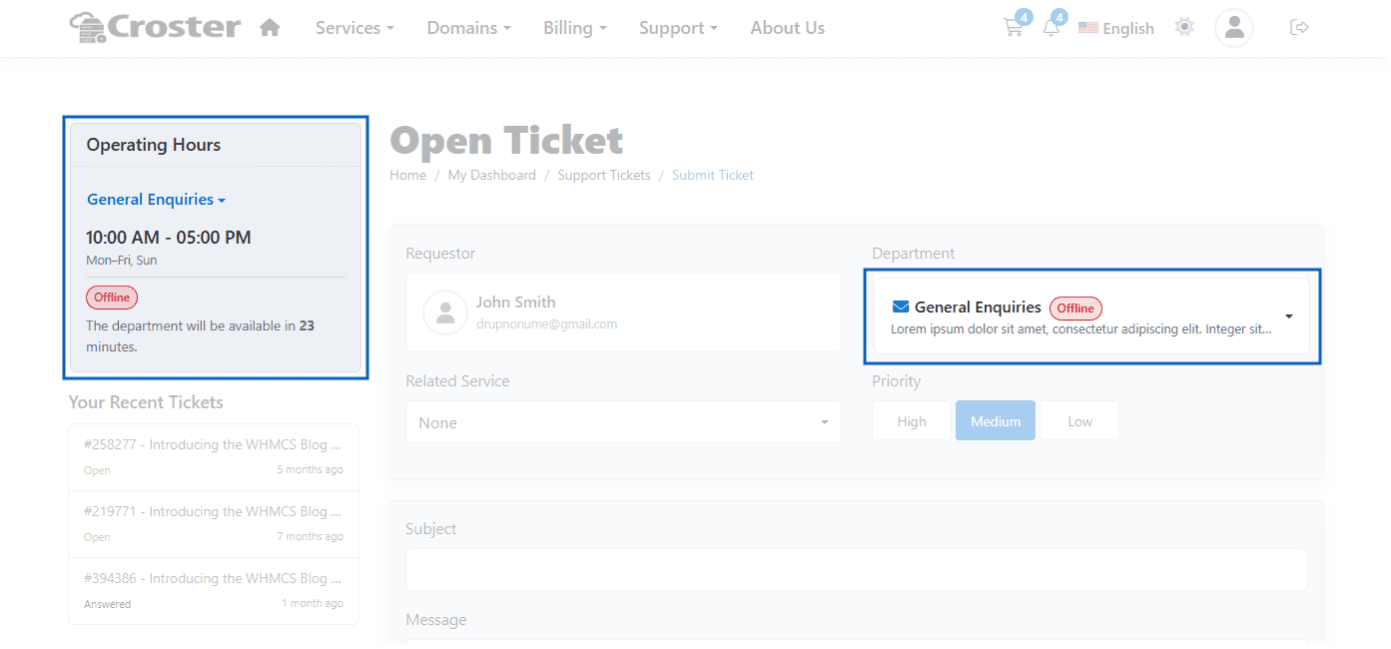
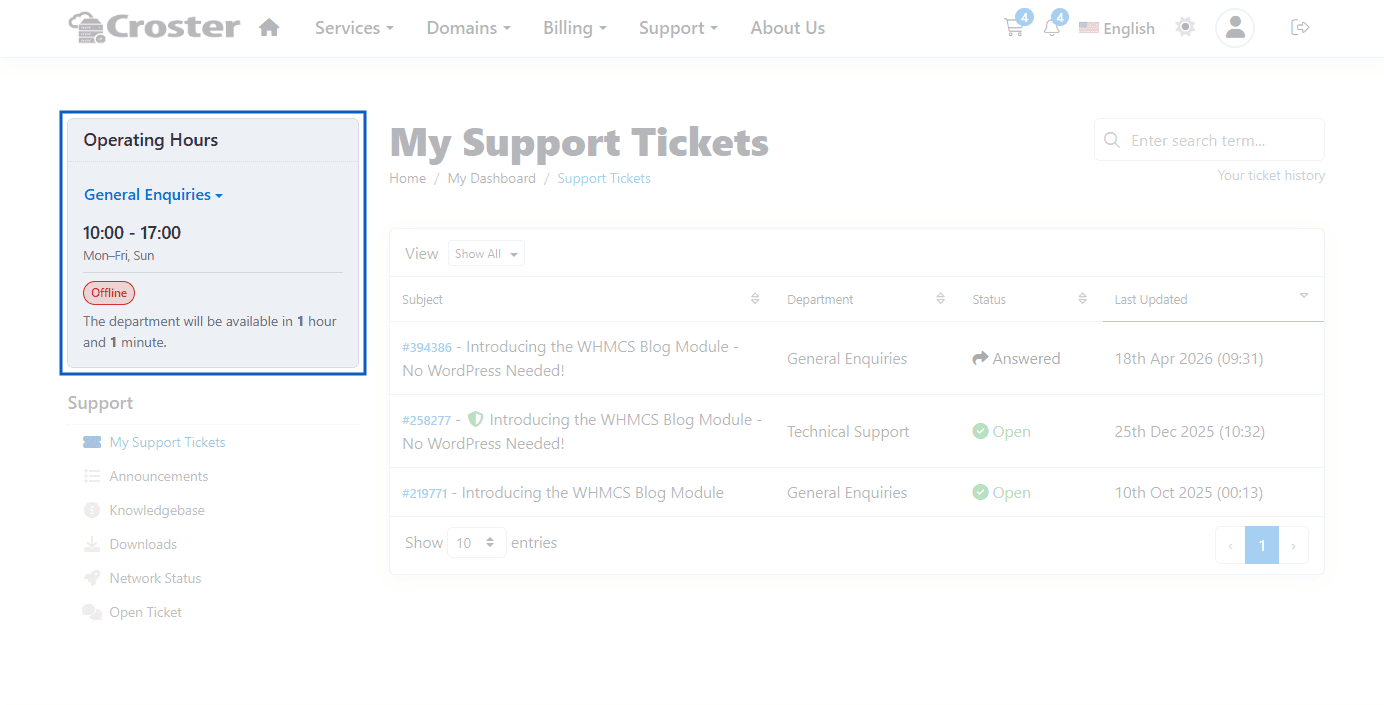
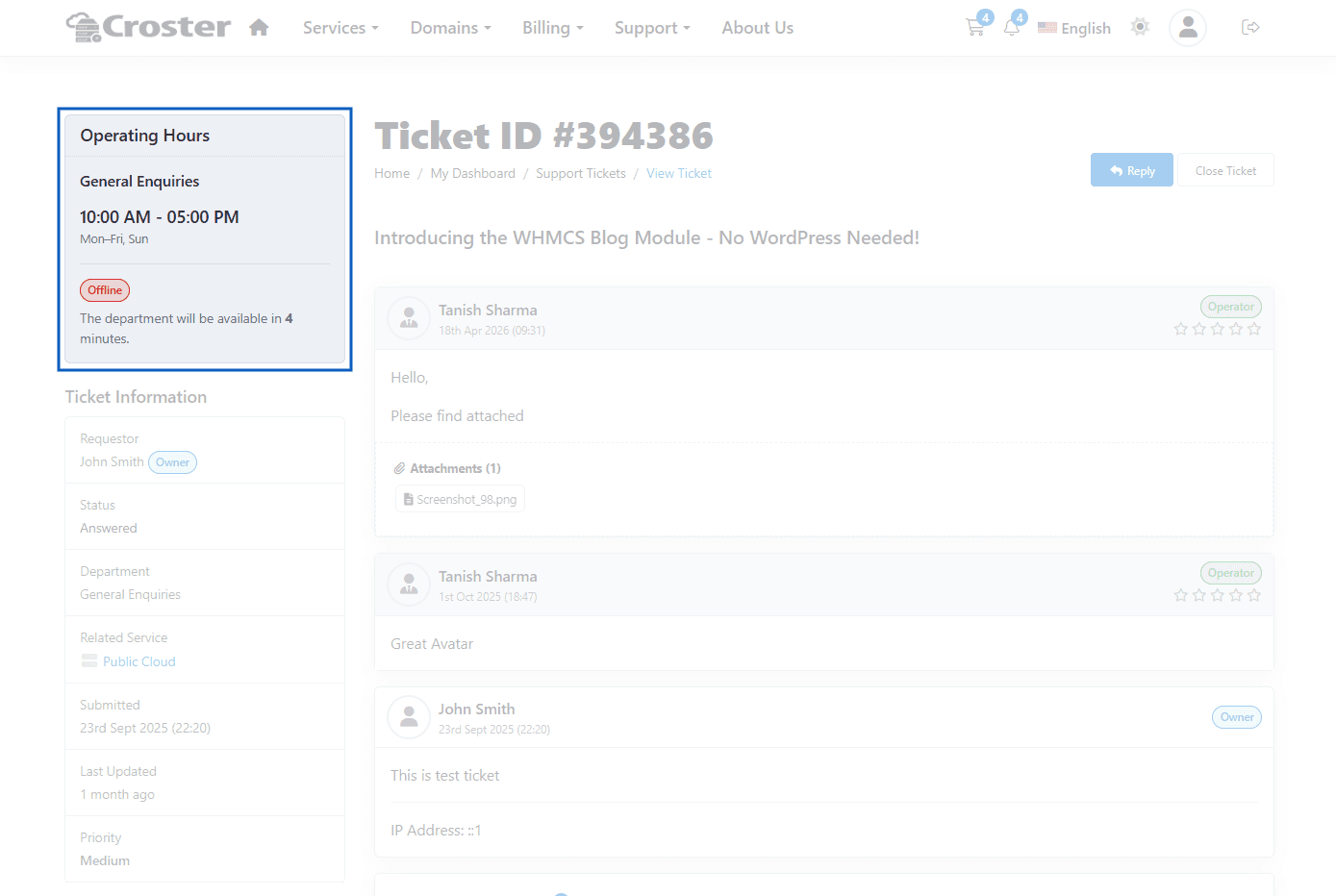
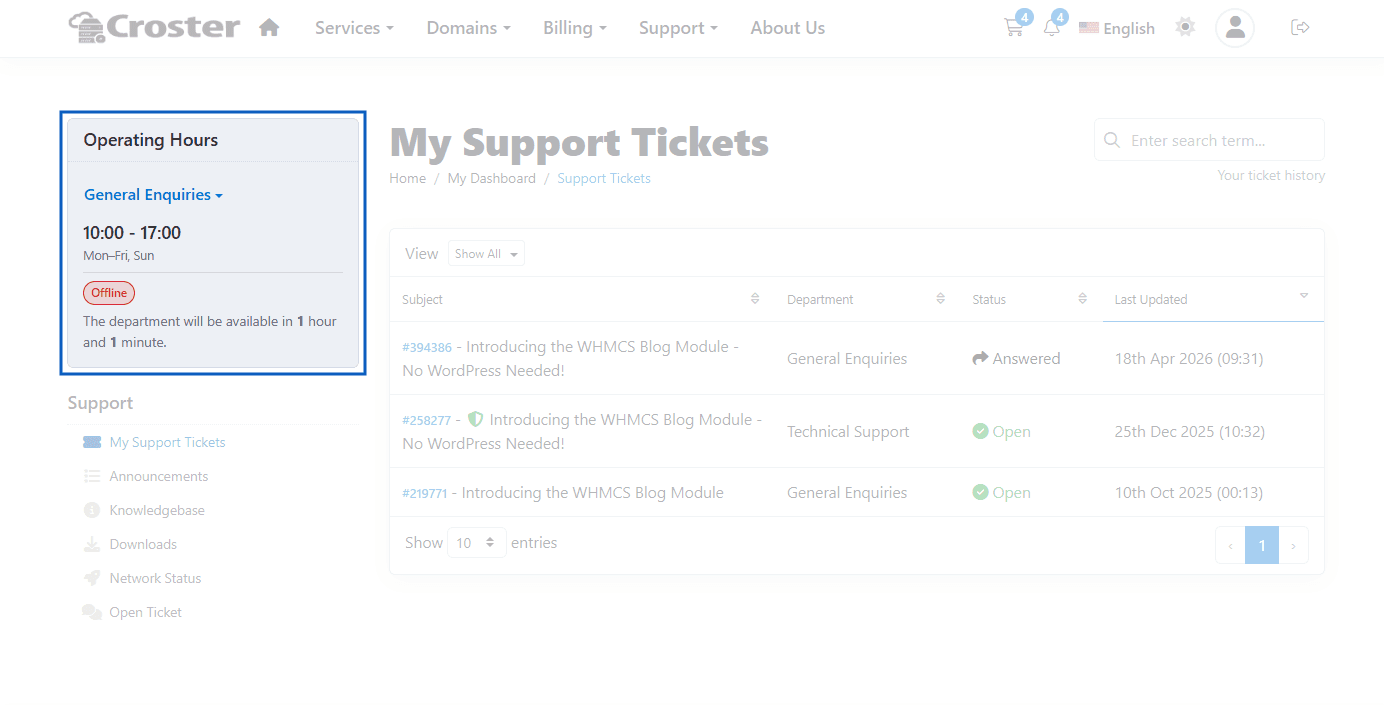
Control how operating hours are displayed. When enabled, times are shown in a 12-hour format (e.g., 11:05 AM/PM). When disabled, times are displayed in a 24-hour format (e.g., 23:05).
Enable this option to hide the department's current availability status label. The screenshot below shows the status label hidden.
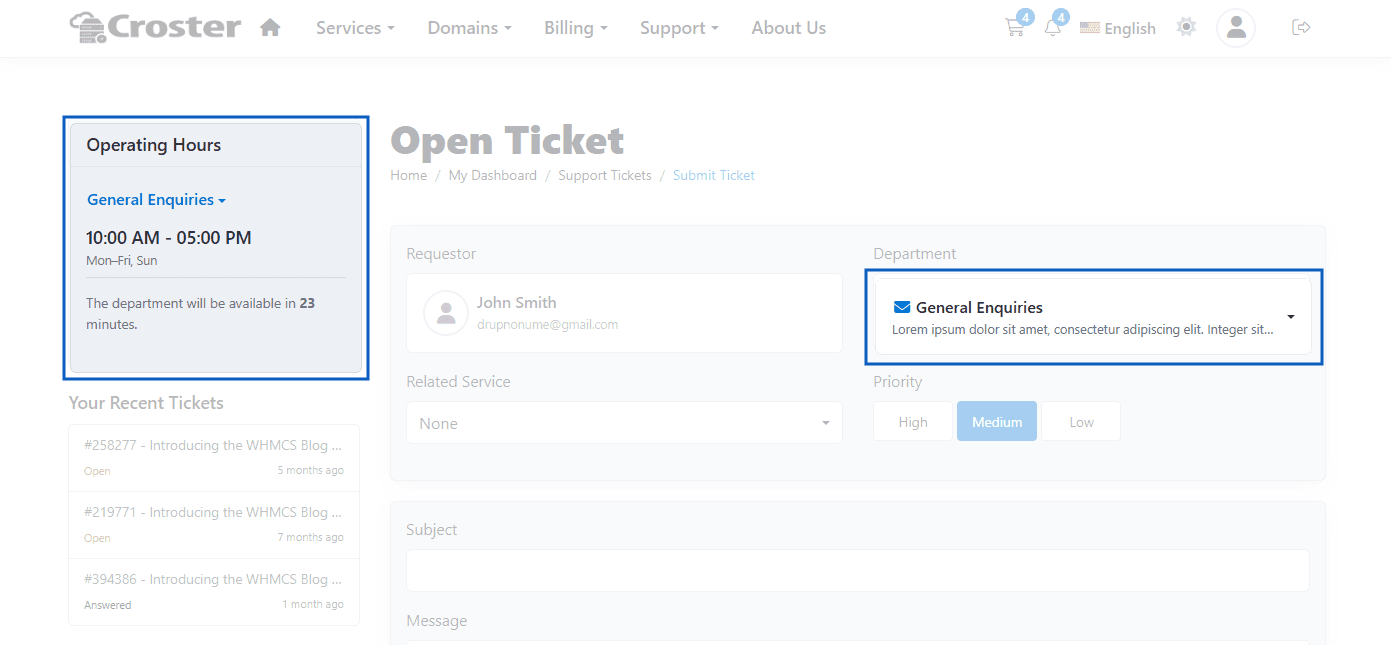
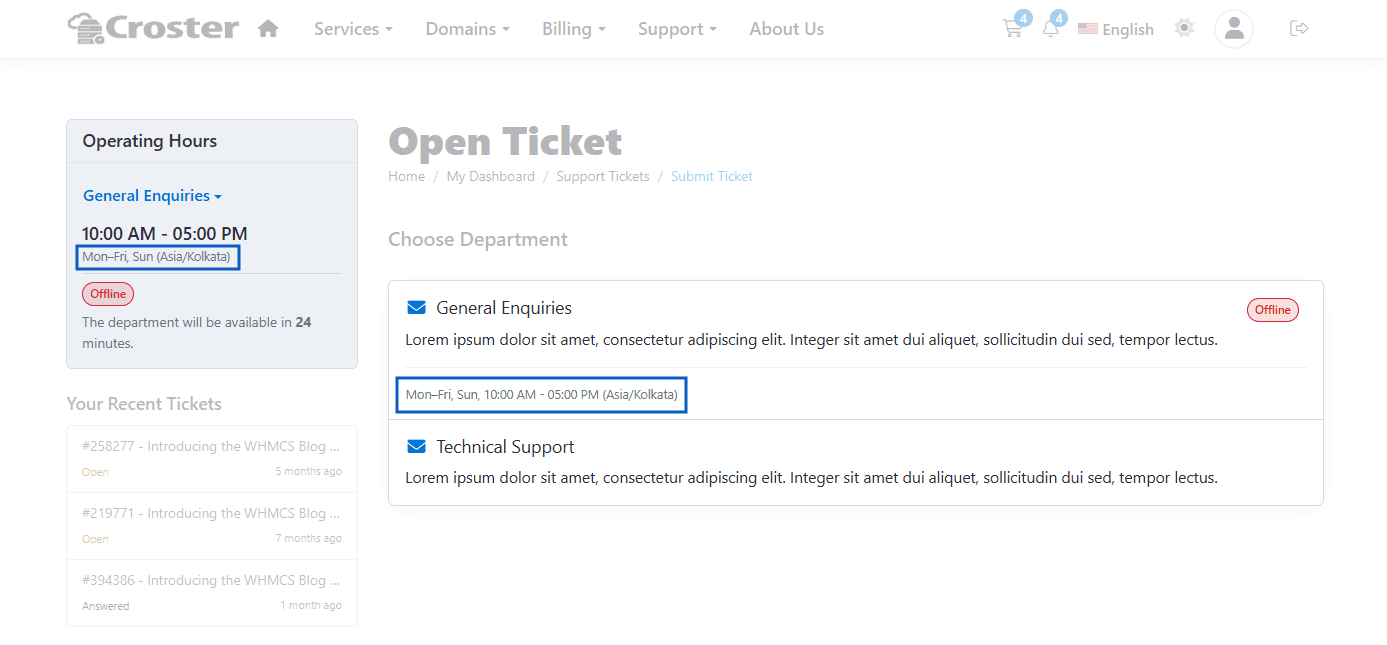
Enable this option to display the configured time zone alongside operating hours.
Select the day that should appear first in the weekly operating hours display. This setting helps align the weekly schedule with regional standards and user preferences.
The Holidays section allows you to define periods when support departments will be unavailable, regardless of their normal operating schedules.

To create a holiday entry:
- Enter a Name for the holiday.
- Select the Start Date.
- Select the End Date.
- Click the + button to add the holiday to the list.
When Apply Holidays is enabled in a department schedule, the configured holidays will automatically override normal operating hours and mark the department as unavailable during the selected dates.
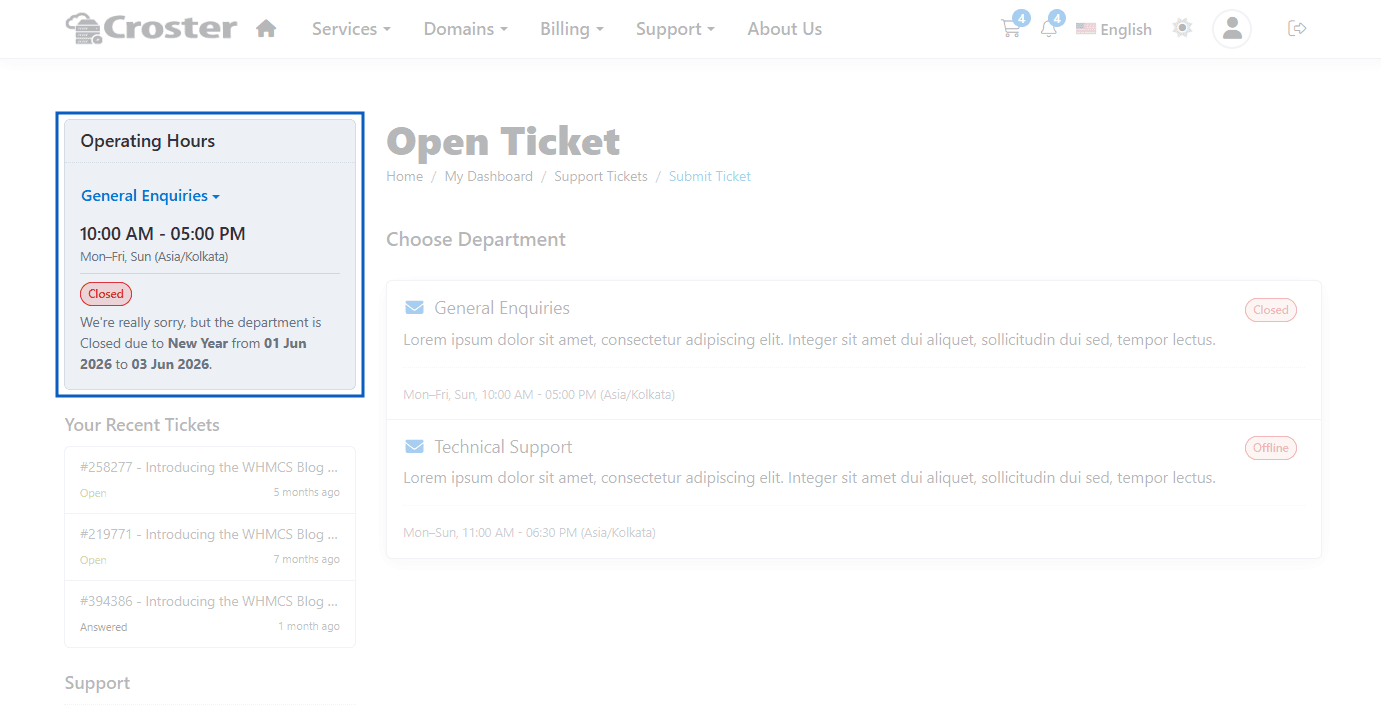
The screenshot below demonstrates a holiday applied to the General Enquiries department. When a holiday is active, the department is marked as Closed, and the holiday message and date range are displayed. The dates shown are for example purposes only.