
Sensitive Data
Enable this to show an extra field where users can safely provide sensitive information in tickets.

Select the support departments in which the Sensitive Data field should be available. The field will only be displayed and accessible within the departments selected here.

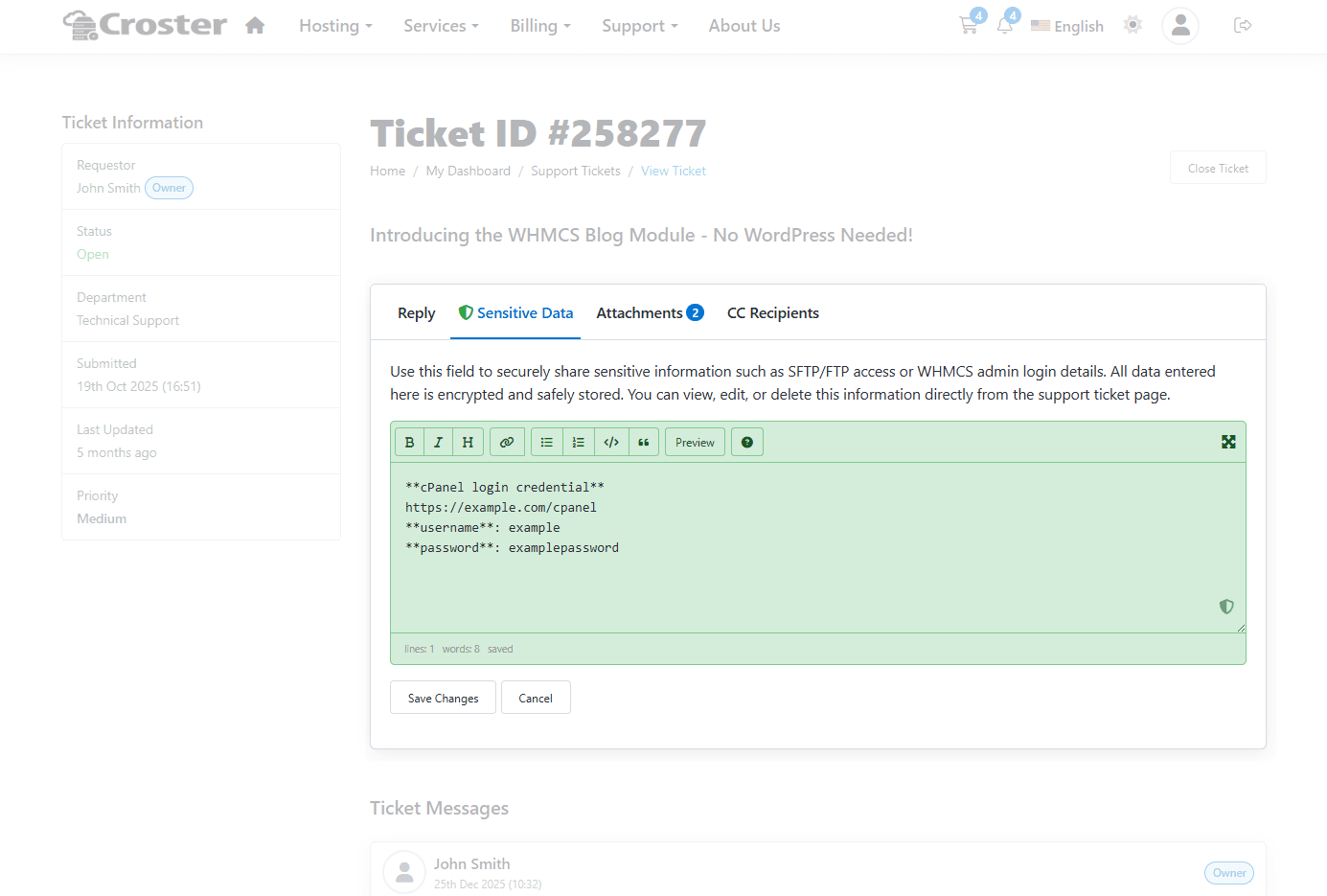
When this option is enabled and assigned to a department, clients will be able to access and view the Sensitive Data tab within tickets created in that department, as shown in the screenshot below.
The Sensitive Data tab on the View Ticket page allows clients to manage ticket-related sensitive information.
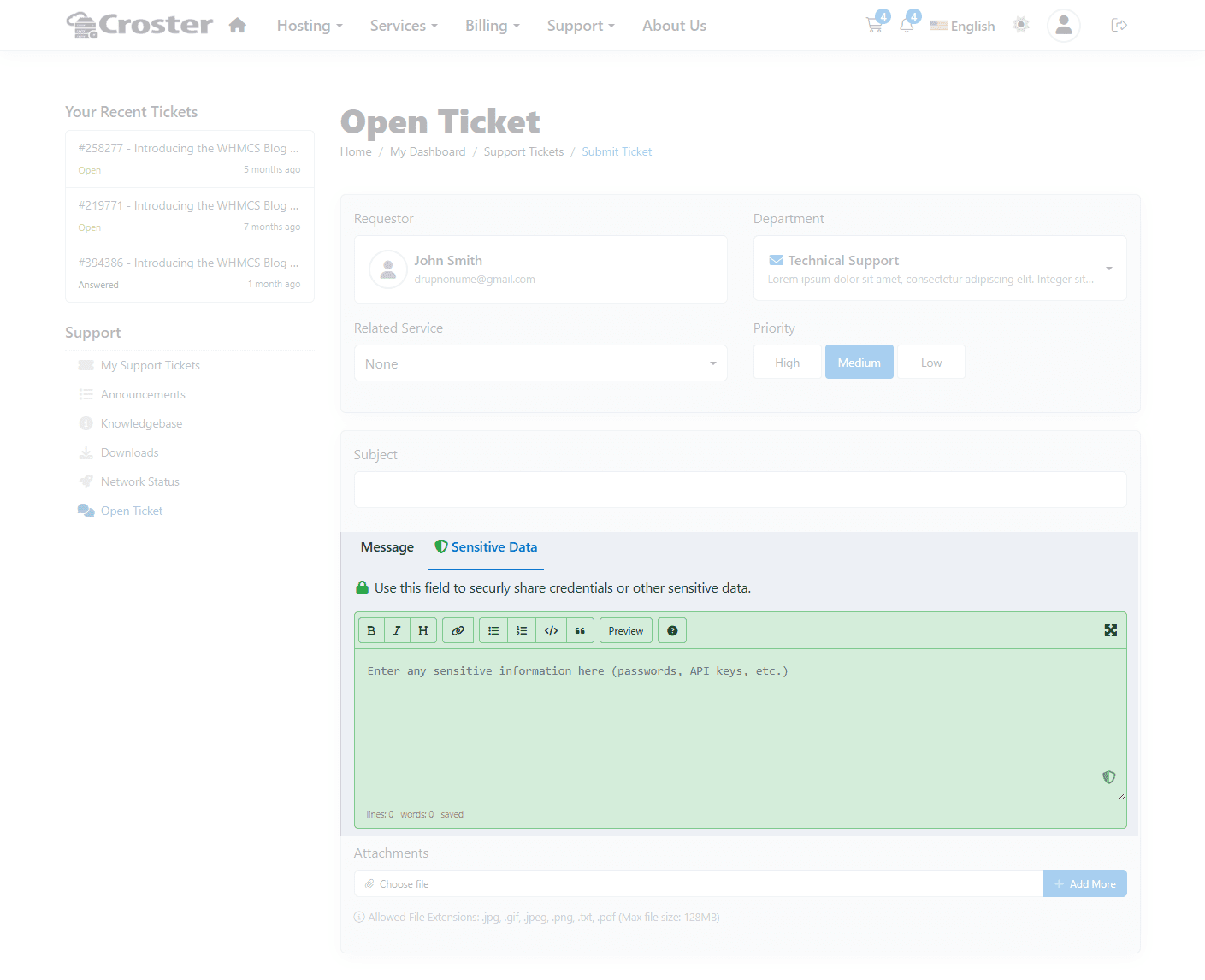
While creating a ticket, users can switch to the Sensitive Data tab to securely add confidential information using the built-in Markdown editor. This keeps sensitive data separate from regular ticket content.
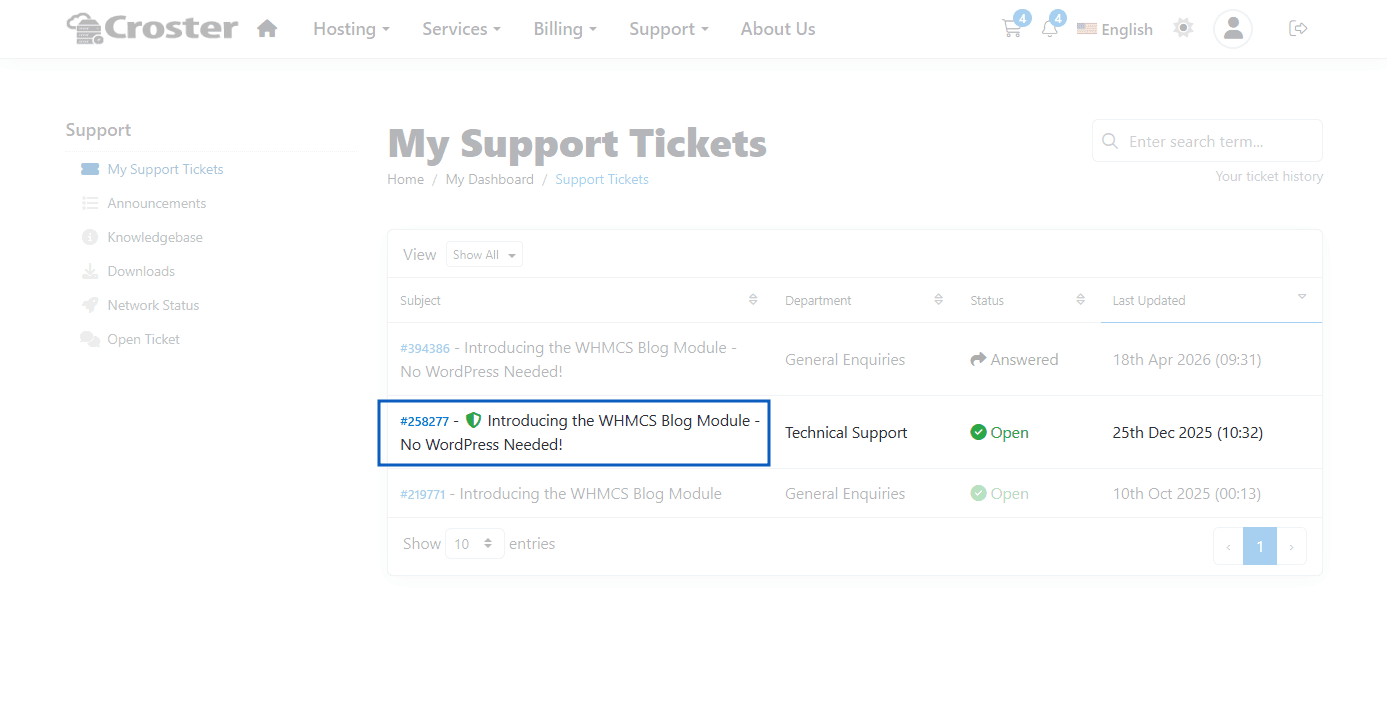
The Ticket List page displays a green shield icon beside the subject of any ticket that contains Sensitive Data, providing a clear visual indicator of the presence of confidential information.
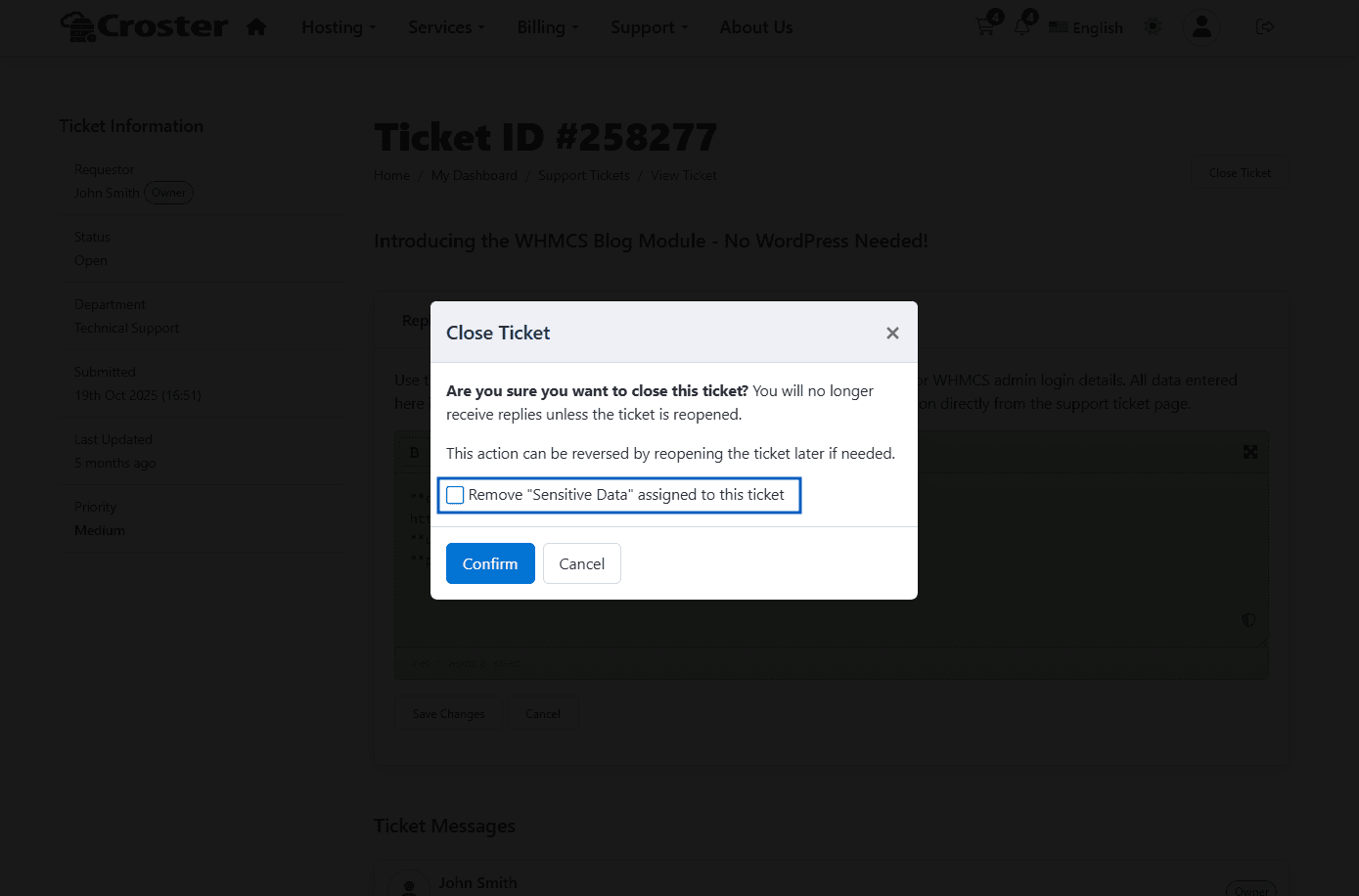
Enable this option to allow Sensitive Data to be removed when a ticket is closed.
You can also allow clients to choose whether their Sensitive Data should be deleted during ticket closure. If this option is disabled, Sensitive Data will be removed automatically when the ticket is closed.

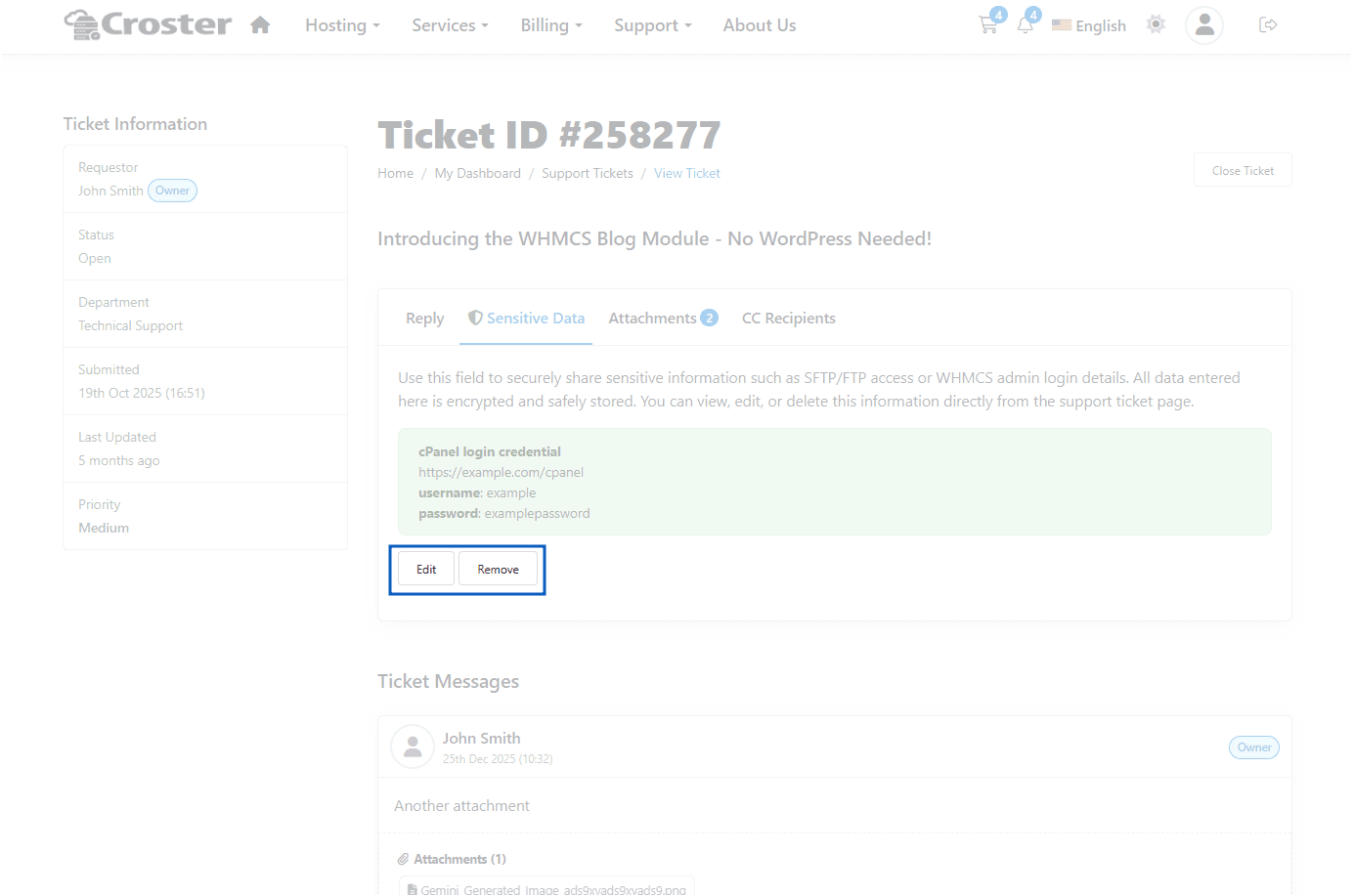
When enabled, customers can manually remove their Sensitive Data at any time using the Remove button. This gives them full control over the information they have shared and allows them to delete it whenever needed.

The effect before applying this setting.
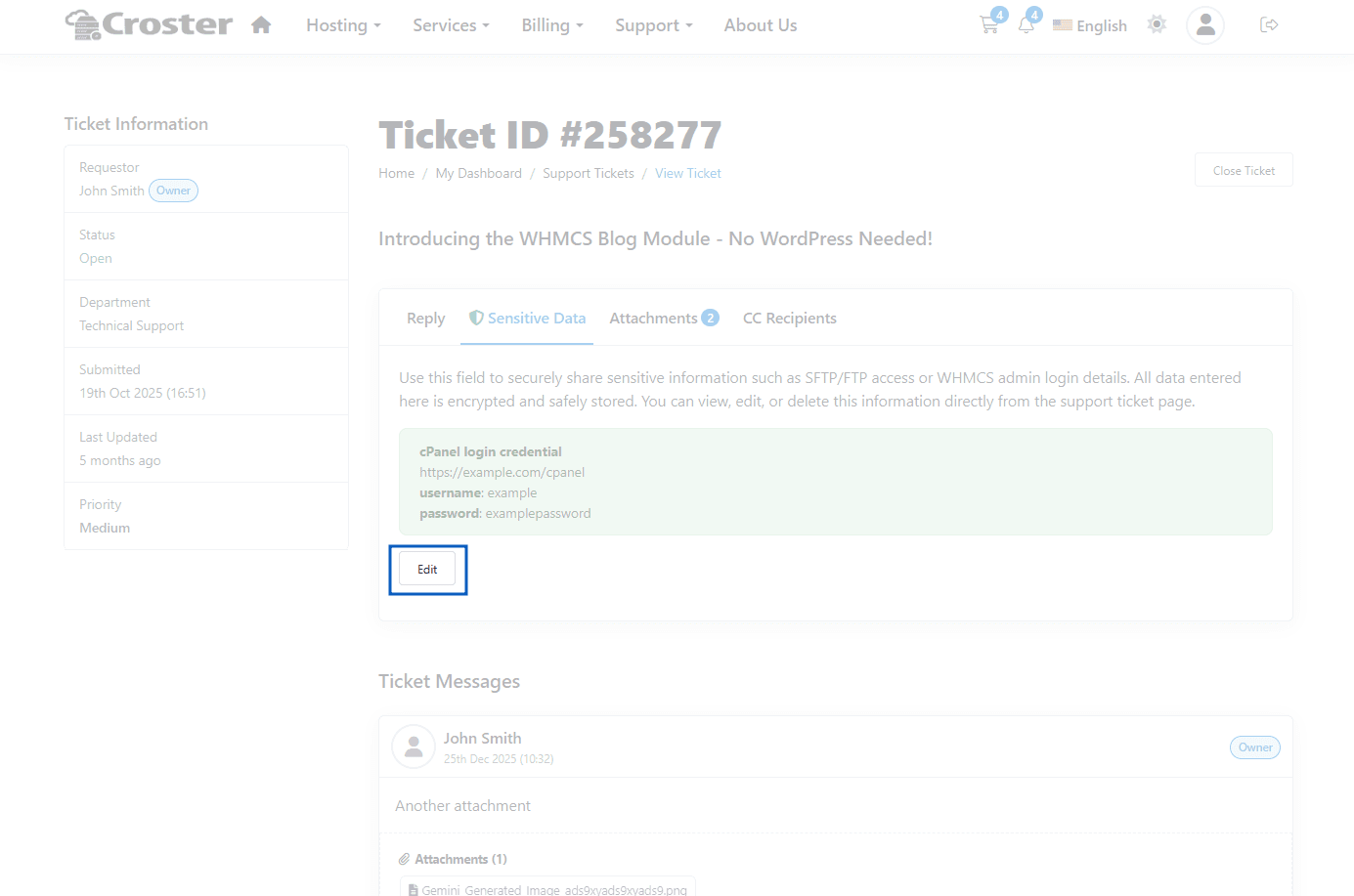
After enabling this option, a Remove button becomes visible, allowing users to delete their assigned Sensitive Data directly from the ticket.
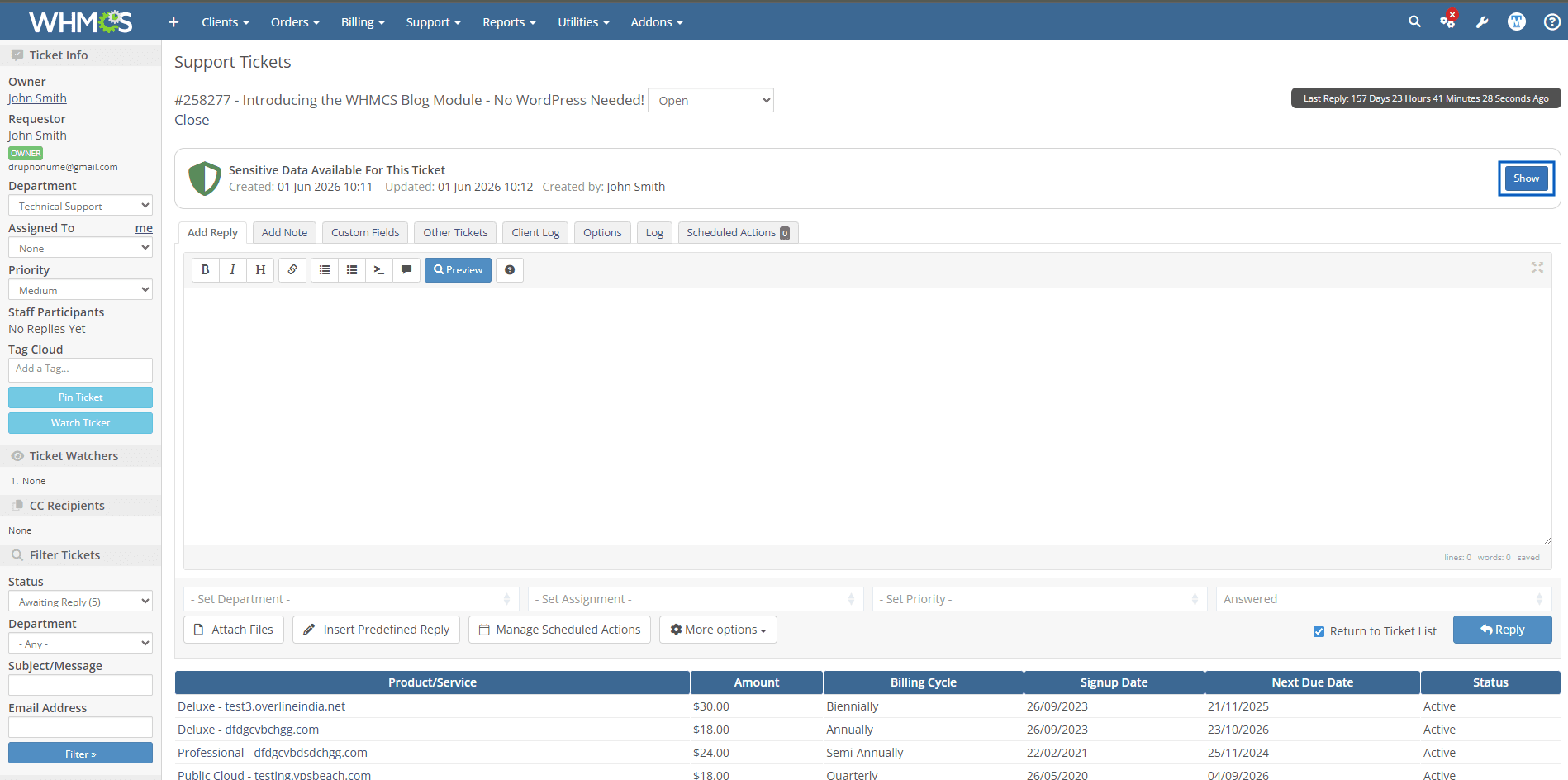
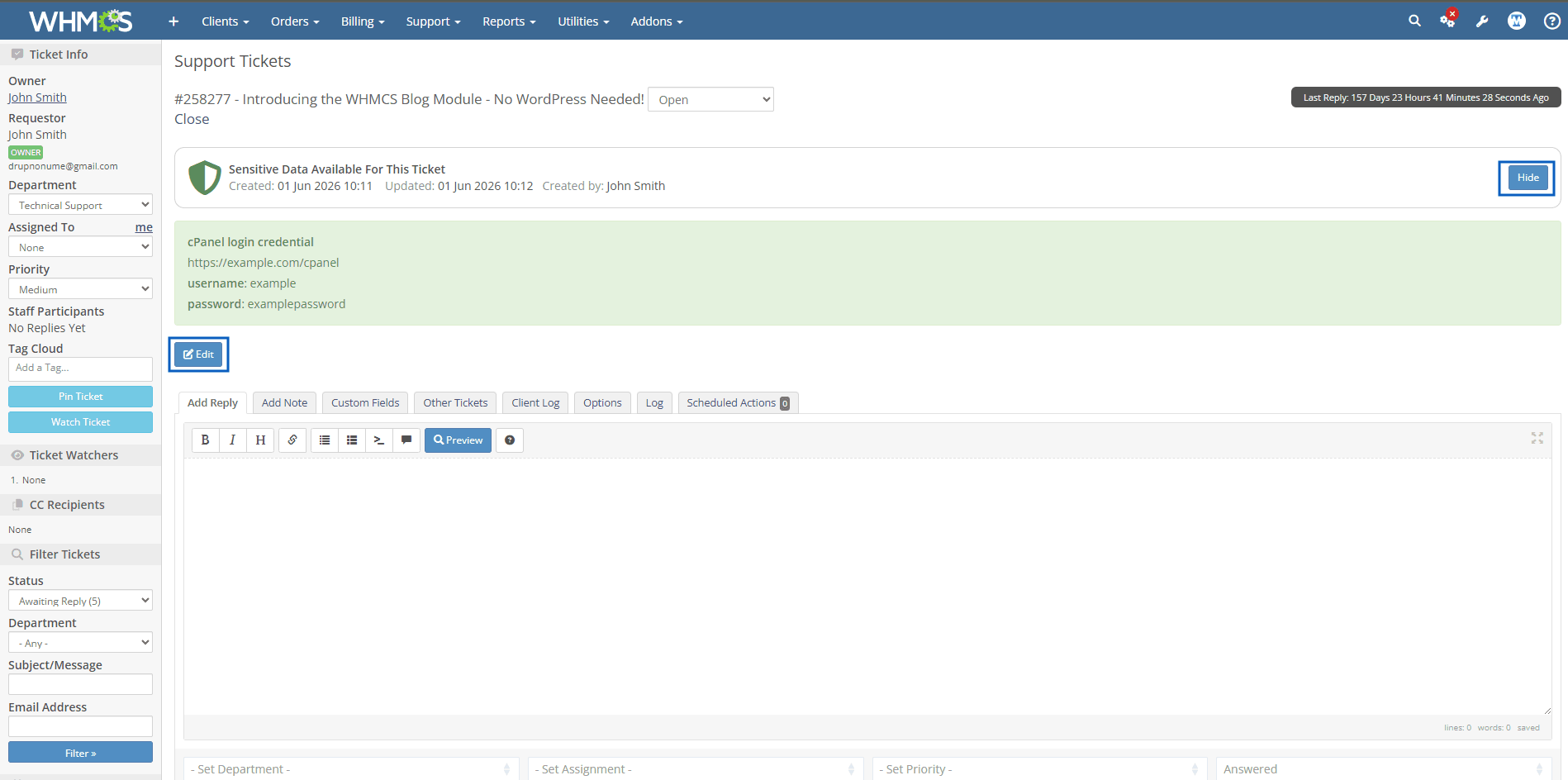
Enable this option to grant administrators access to Sensitive Data within the WHMCS Admin Area. When enabled, a Sensitive Data indicator will be displayed in the Ticket List, and administrators will be able to view and manage Sensitive Data directly from the Ticket View page.

Show - Expands the assigned sensitive data items.
- Hide - Collapses the assigned sensitive data items.
- Edit - Enables support staff and administrators to update the assigned Sensitive Data directly from the ticket.
Displays all clients who currently have Sensitive Data associated with their support tickets. A client is automatically added to this list when at least one Sensitive Data entry is created in any of their tickets. If all Sensitive Data entries linked to the client are removed, the client is automatically removed from the list.
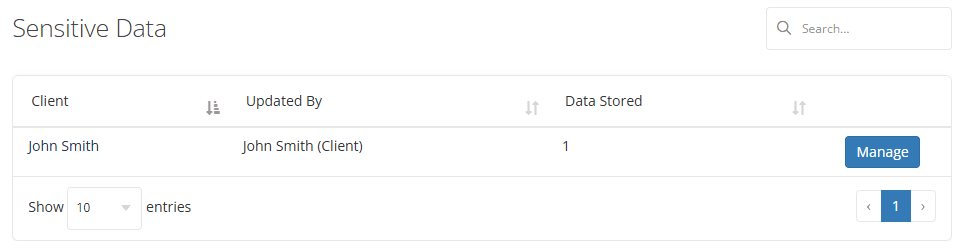
The Manage button provides access to all Sensitive Data records assigned to the selected client, allowing administrators to view, update, or remove data as needed.
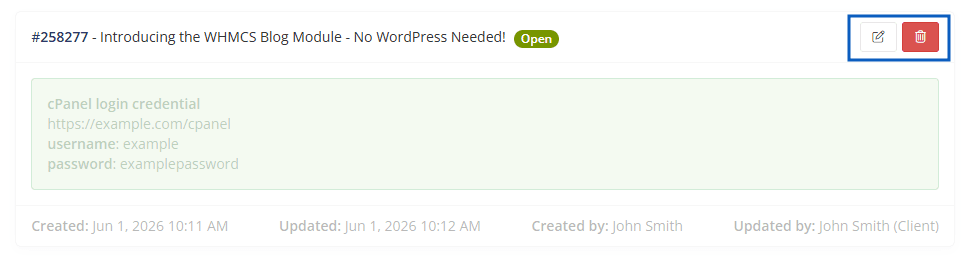
- Edit - Allows you to modify the selected Sensitive Data entry,
- Delete -Allows you to permanently remove the selected Sensitive Data entry from the system.
Clicking Edit opens the editor screen below, where you can update and save the selected Sensitive Data entry.
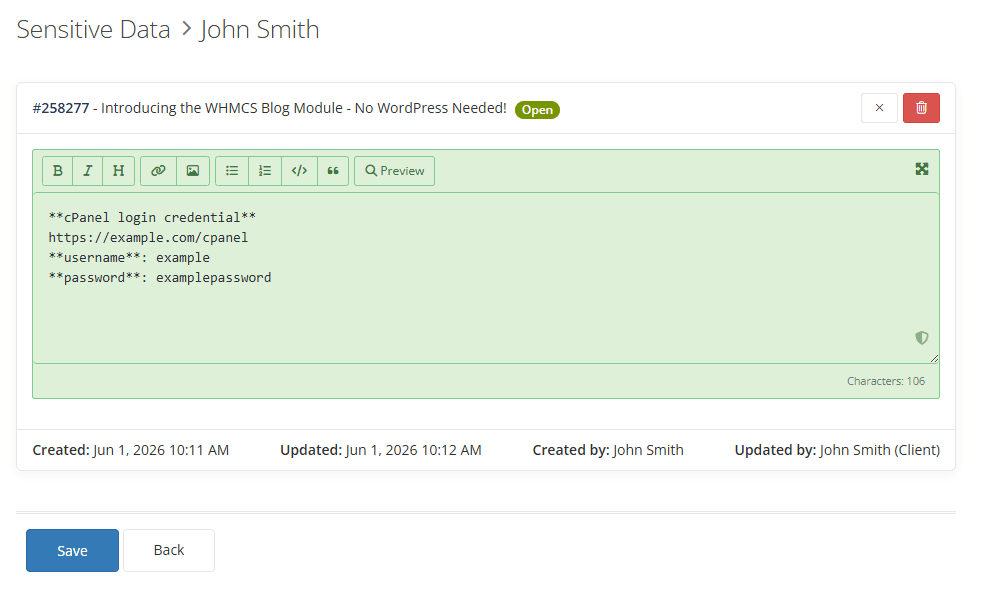
Timestamps and User Information
- Created – Timestamp of when the sensitive data was first added to the ticket.
- Updated – Timestamp of the most recent update to the sensitive data.
- Created By – Indicates who originally added the sensitive data (Client or Administrator).
- Updated By – Indicates who last modified the sensitive data (Client or Administrator).