
Email Templates
Croster Email Templates allows you to customize the appearance of your WHMCS emails using built-in email designs. You can select a template, customize the email header and footer, configure the information displayed in the footer, and manage localized content for different client languages.
Croster includes several built-in email styles that you can use as the starting point for your email design.
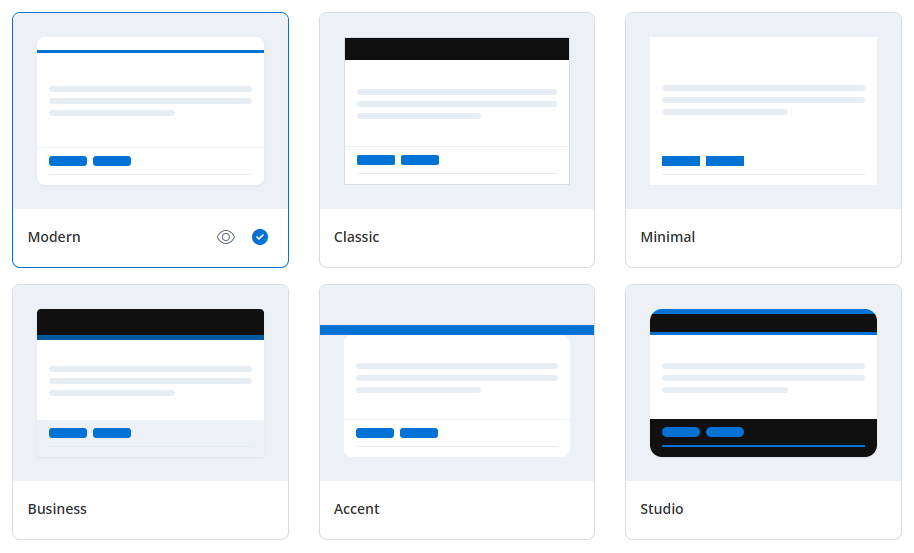
Available templates include:
- Modern
- Classic
- Minimal
- Business
- Accent
- Studio
Croster Email Templates automatically use your existing Croster Style Manager and Croster Panel Branding settings, so you don't need to configure your email colors and branding separately.
Croster Email Templates uses your existing Croster Style Manager and Croster Panel Branding settings for colors and logos. You don't need to configure these separately for each email template.
Email Templates use the logos configured under Croster Panel → Branding. Croster supports separate logos for light and dark color schemes, allowing the appropriate logo to be used based on the selected email template's color scheme.
The Template Settings section allows you to customize common elements of the selected email template.
Configure the size of your company logo displayed in the email header.

- Logo Width – Set the logo width in pixels.
- Logo Height – Set the logo height in pixels.
For the best result, keep the same proportions as your original logo to avoid stretching.
The footer section allows you to control which information is displayed at the bottom of your emails.
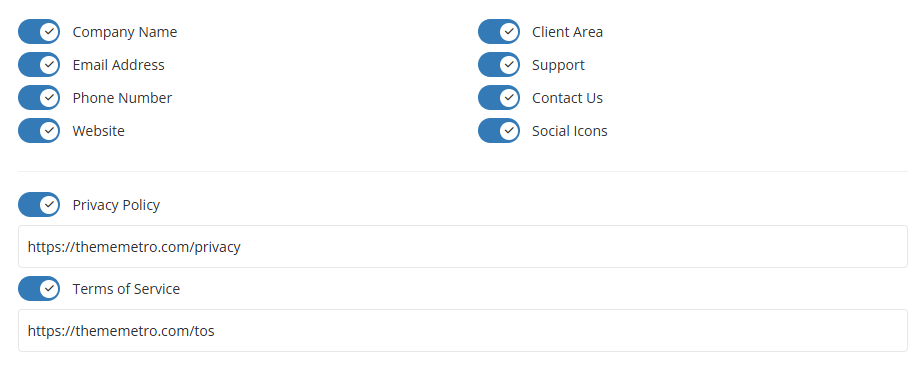
You can enable or disable the following options:
- Company Name -Company name from WHMCS General Settings.
- Email Address - Support email from Croster Global Settings.
- Phone Number - Phone number from Croster Global Settings.
- Website - Website domain from WHMCS General Settings.
- Client Area - WHMCS System URL.
- Support - WHMCS Support Ticket page.
- Contact Us - WHMCS Contact Us page.
- Social Icons - Social networks configured under WHMCS → General Settings → Social.
- Privacy Policy - Enable this option to display your Privacy Policy link in the email footer. Enter the URL of your Privacy Policy page in the field provided.
- Terms of Service - Enable this option to display your Terms of Service link in the email footer. Enter the URL of your Terms of Service page in the field provided.
The Localization section allows you to customize the footer text according to the client's language.
- Website
- Client Area
- Support
- Contact Us
- Privacy Policy
- Terms of Service
- Copyright
Use the language selector beside each field to provide the appropriate text for each language. Croster automatically uses the corresponding language content when the email is displayed or sent to the client.
The Copyright field supports dynamic tokens.
For example:
The output will automatically use the current year and your WHMCS company name.