
Installation
This article will guide you through the steps required to install the Croster WHMCS Client Theme on a server where the theme has not been installed previously. We will walk you through the entire installation process, ensuring a smooth and successful setup.
- Log in to your client area and download Croster theme.
- Unzip the contents of the zip file to a folder on your computer.
- Upload the entire folders and files in to your WHMCS root directory, which are available in 'upload' folder - if you experience problems, try uploading in binary mode.
- Login to your WHMCS admin area go to System Settings → Addon Modules
- In the addon modules page you will see the Croster Panel click activate then click configure to see the options.

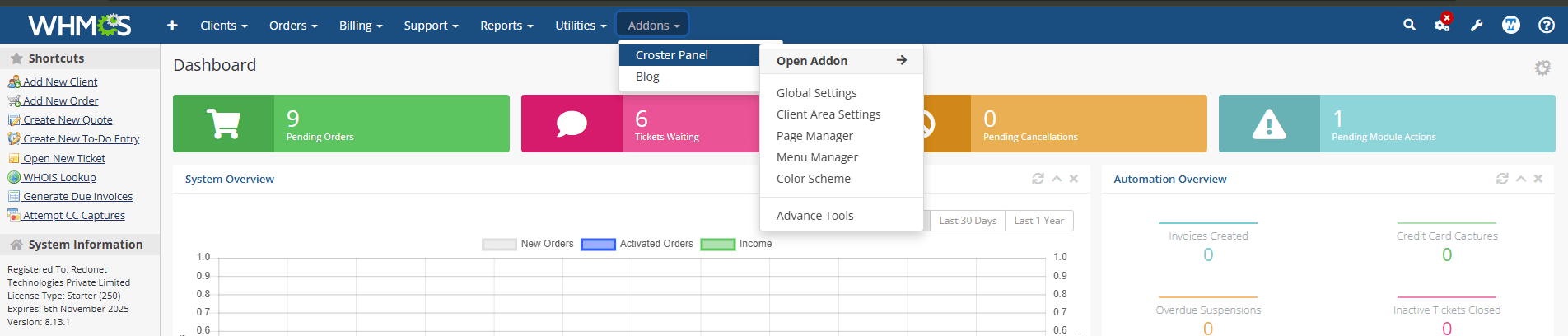
- Once done, visit the Croster Panel by click Addons → Croster Panel
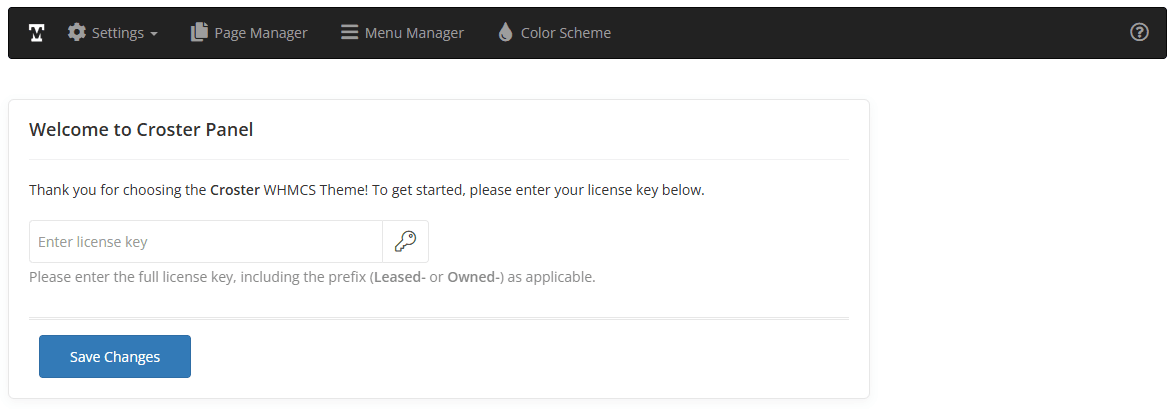
- Enter the Croster license key and press the "Save Changes" button. The license key can be found in ThemeMetro Client Portal.
- Now select the Croster template from System Settings → General Settings → System Theme and Croster Default order form from System Settings → General Settings → Ordering → Default Order Form Template.
- If you don't want to active during development you may access the theme by using below link and once your website is production ready you can active them.
After completing the installation, you may encounter errors or blank products on pre-created or pre-made templates pages. To resolve this, we recommend configuring your new Croster WHMCS Theme.
Choose the product groups you want to feature and link to internal pages. The theme will automatically retrieve:
- The lowest product pricing from each group.
- The description from WHMCS Admin → Products/Services → Product Groups.
Similar to the WHMCS order form, the Croster pricing sections are dynamic. To make your plans visible on pages, use the Page Manager to select your plans, If WHMCS is newly installed and no plans or packages have been added yet, you must add them first. Otherwise, the Page Manager will display an empty plan list.
Ensure the product descriptions in WHMCS Admin → Setup → Products/Services follow the guidelines.
To select the TLDs you wish to display in Banner Domain and Featured TLDs section, You must need to setup all TLDs in WHMCS domain Pricing if not setup.
By following these steps, you’ll ensure your Croster WHMCS Theme is fully functional and optimized for visibility and usability.
If you want to use Croster only for the WHMCS client area and not as a complete website solution, follow these steps:
- Go to Page Manager and unpublish all pre-installed pages.
- Go to Menu Manager and disable the menu items that link to those additional pages.
That's it. Croster will continue to enhance your WHMCS client area while your main website remains on a separate platform or theme.