
Promotion Manager
The Promotion Manager allows you to create targeted promotional banners that appear throughout the WHMCS client area. Promotions can be scheduled, restricted to specific products or addons, and displayed on selected pages to help increase product visibility and conversions.
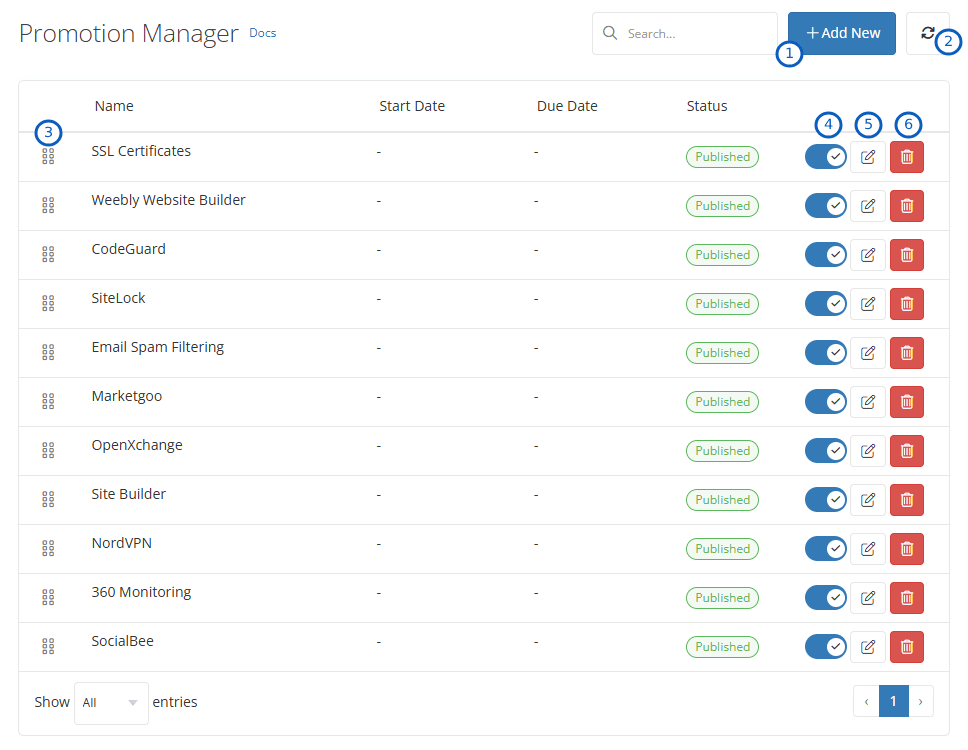
- Add New – Create a new promotion.
- Refresh - Refresh the list of available WHMCS MarketConnect products, If a new MarketConnect product is added, a refresh may be required before it becomes available in Promotion Manager.
- Reorder – Drag and drop promotions to change their display priority.
- Enable/Disable Switch - Quick Enable or disable the promotion banner.
- Edit – Modify an existing promotion.
- Delete – Permanently remove a promotion.
Configure the content and behavior of each promotion.
The Description section contains the text displayed within the promotion banner.
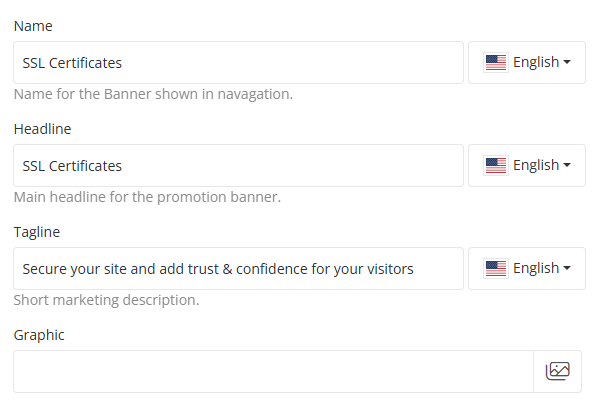
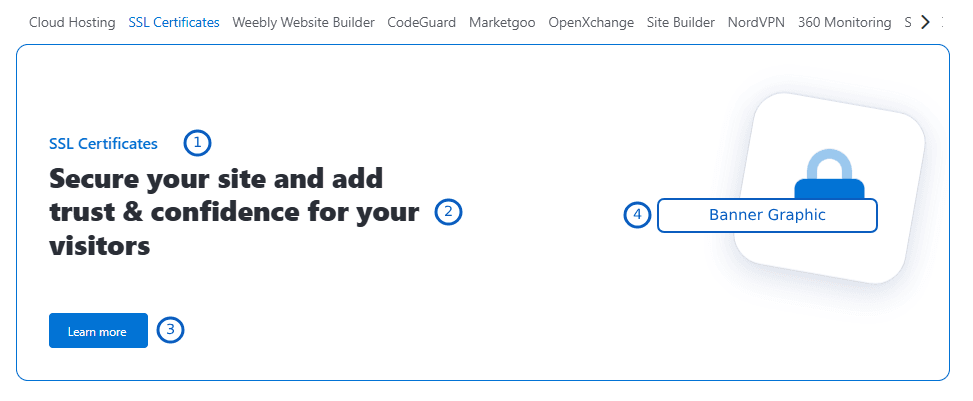
- Name - Enter the promotion name displayed within promotion navigation and slider controls.
- Headline - Enter the main heading displayed in the promotion banner.
- Tagline - Enter a short marketing message or promotional text displayed below the headline.
- Graphic - Upload or select an image OR icon to display within the promotion banner.
Preview - Promotion Banner
The selected background style is applied to the promotion banner and affects its overall appearance within the client area.

Background Type - Select the background style used for the section.
- None
- Primary
- Light
- Dark
- Graphic
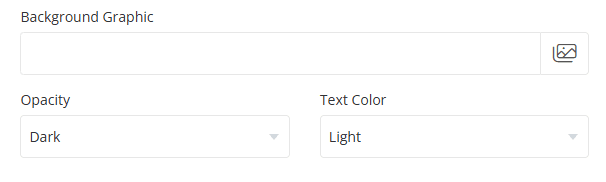
When Graphic is selected as the Background Type, additional settings are displayed, allowing you to select a background image, configure its opacity, and choose the appropriate text color for the section.
The Action Button section allows you to add a call-to-action button to the promotion banner and configure its appearance and destination link.
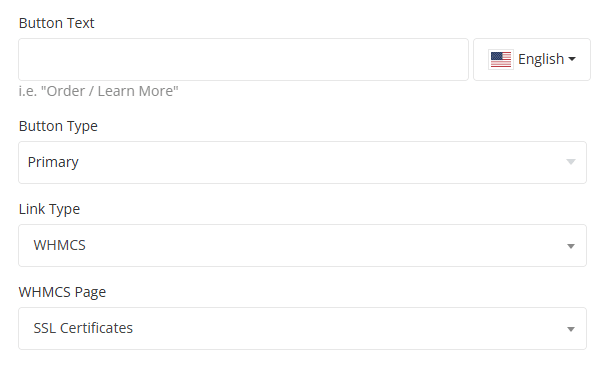
- Button Text - Enter the text that will be displayed on the button.
- Button Type - Select the button color scheme to use. Available options correspond to the button styles configured in the Style Manager, such as Primary, Secondary, Success, Warning, Danger, Info, and Dark.
- Link Type - Select the type of link that the button should use.
- Link To - Specify the destination for the button. The available options depend on the selected Link Type, For example, if Custom URL is selected, enter the target URL in this field.
Common options include in Link Type:
- WHMCS - Select WHMCS Page including MarketConnect Page if enabled.
- Page Manager - Link to a page created in the Page Manager.
- Product - Link directly to a WHMCS product.
- Custom URL - Link to any external or internal URL.
Control when the promotion becomes available.
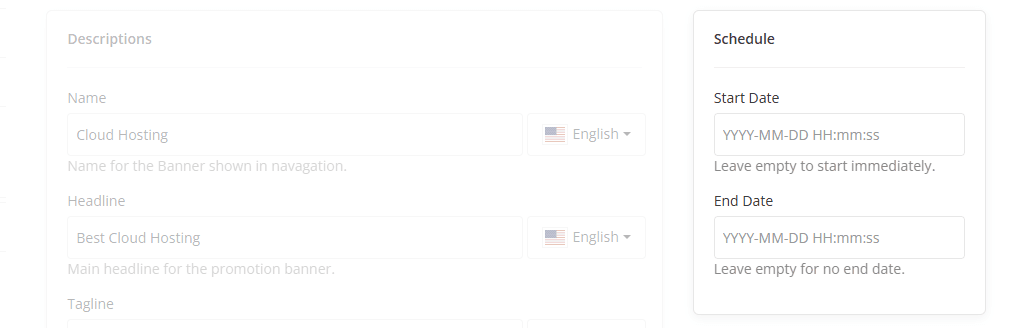
- Start Date - Specify when the promotion should begin displaying, Leave empty to display the promotion immediately.
- End Date - Specify when the promotion should stop displaying, Leave empty if the promotion should remain active indefinitely.
Select where the promotion should be displayed within the WHMCS client area.
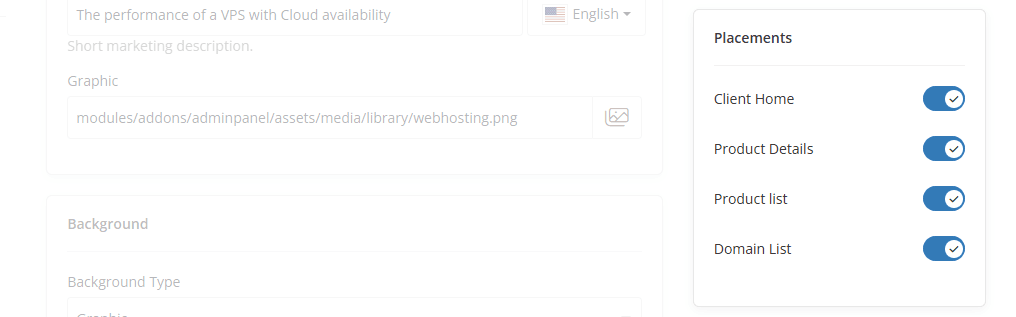
- Client Home - Display the promotion on the client area homepage.
- Product Details - Display the promotion on product details pages.
- Product List - Display the promotion on product listing pages.
- Domain List - Display the promotion on domain listing pages.
Preview - Client Home (Dahsboard)
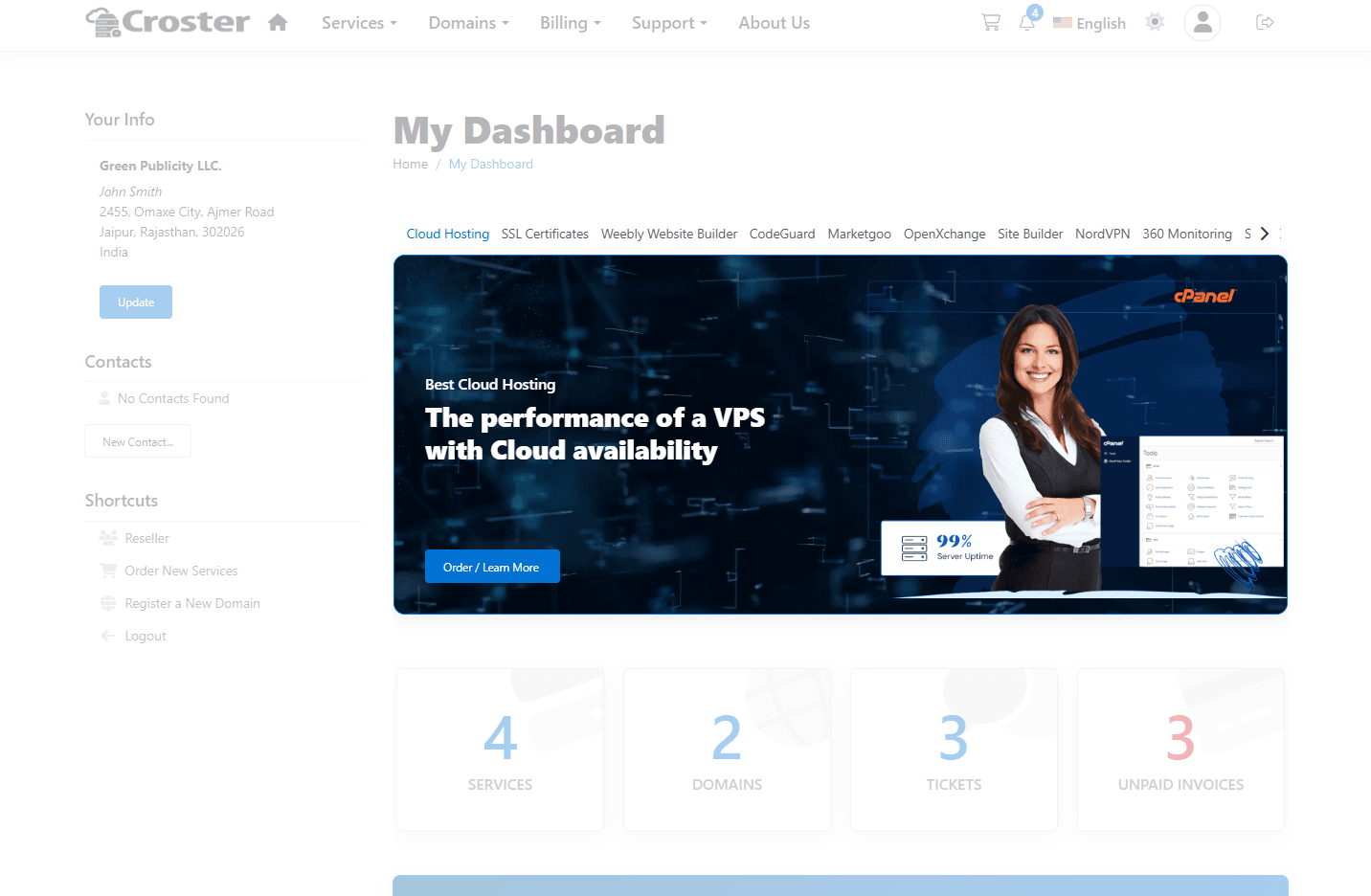
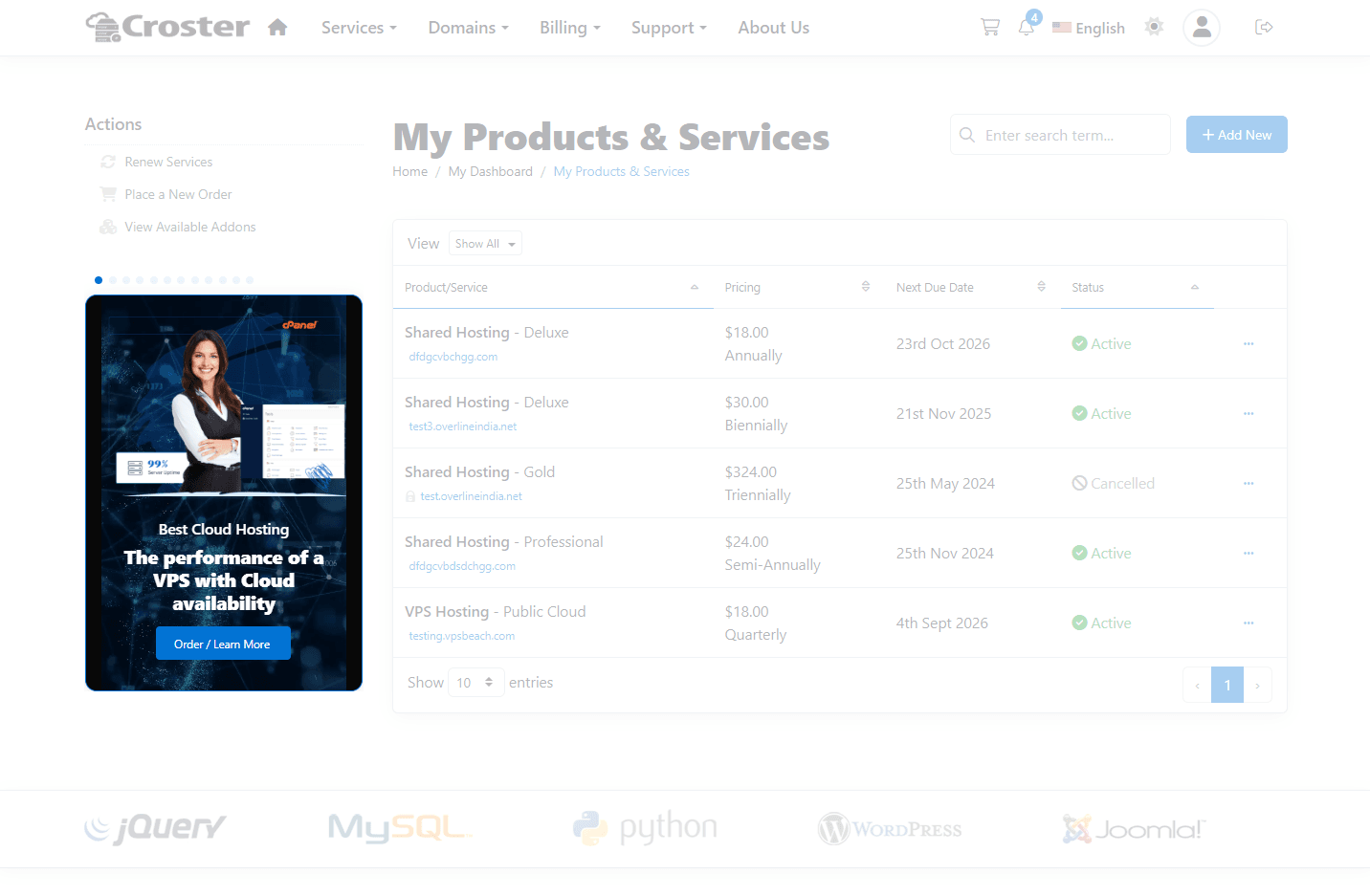
Preview - Product list (My Services)
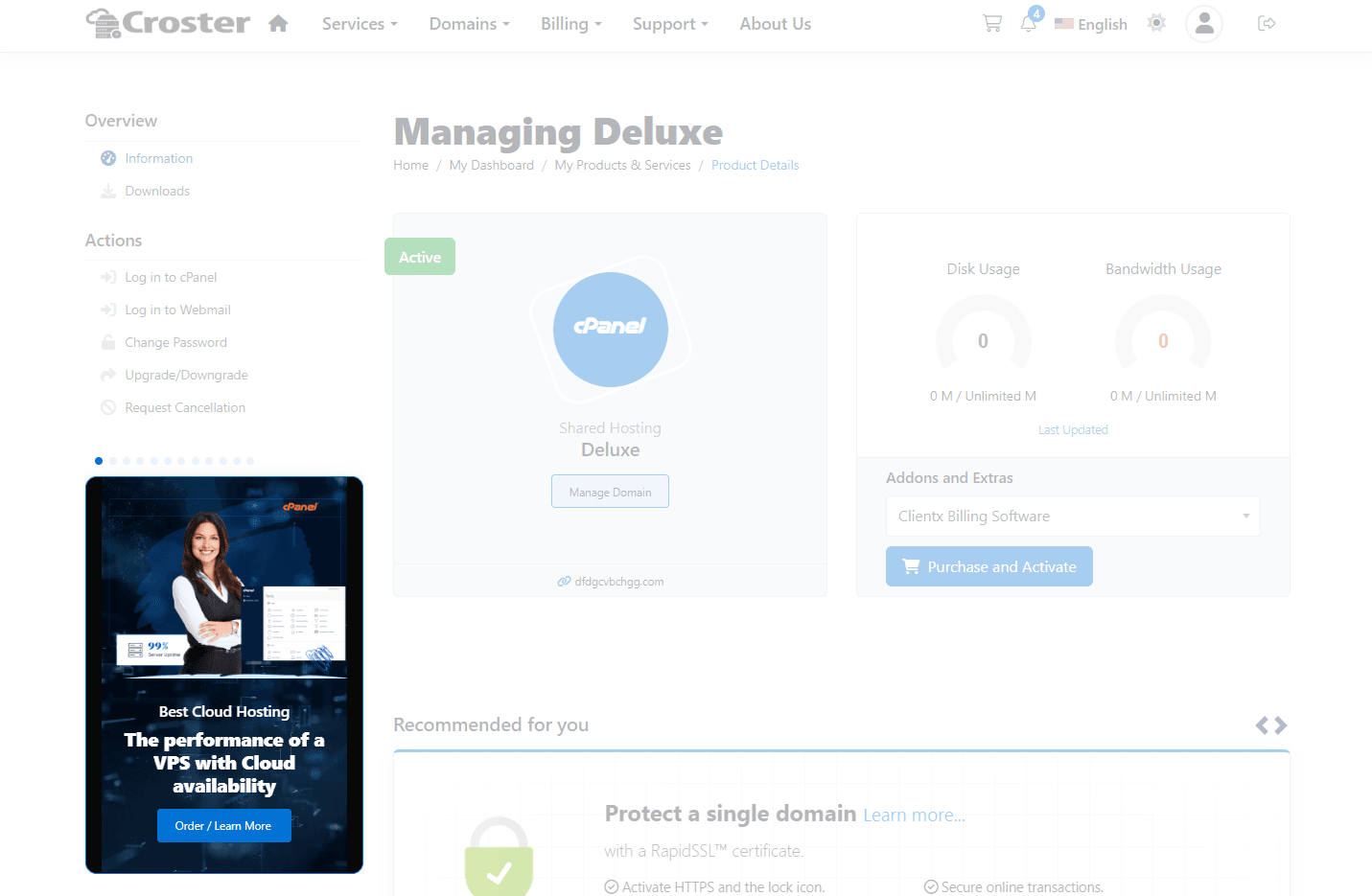
Preview - Product Details
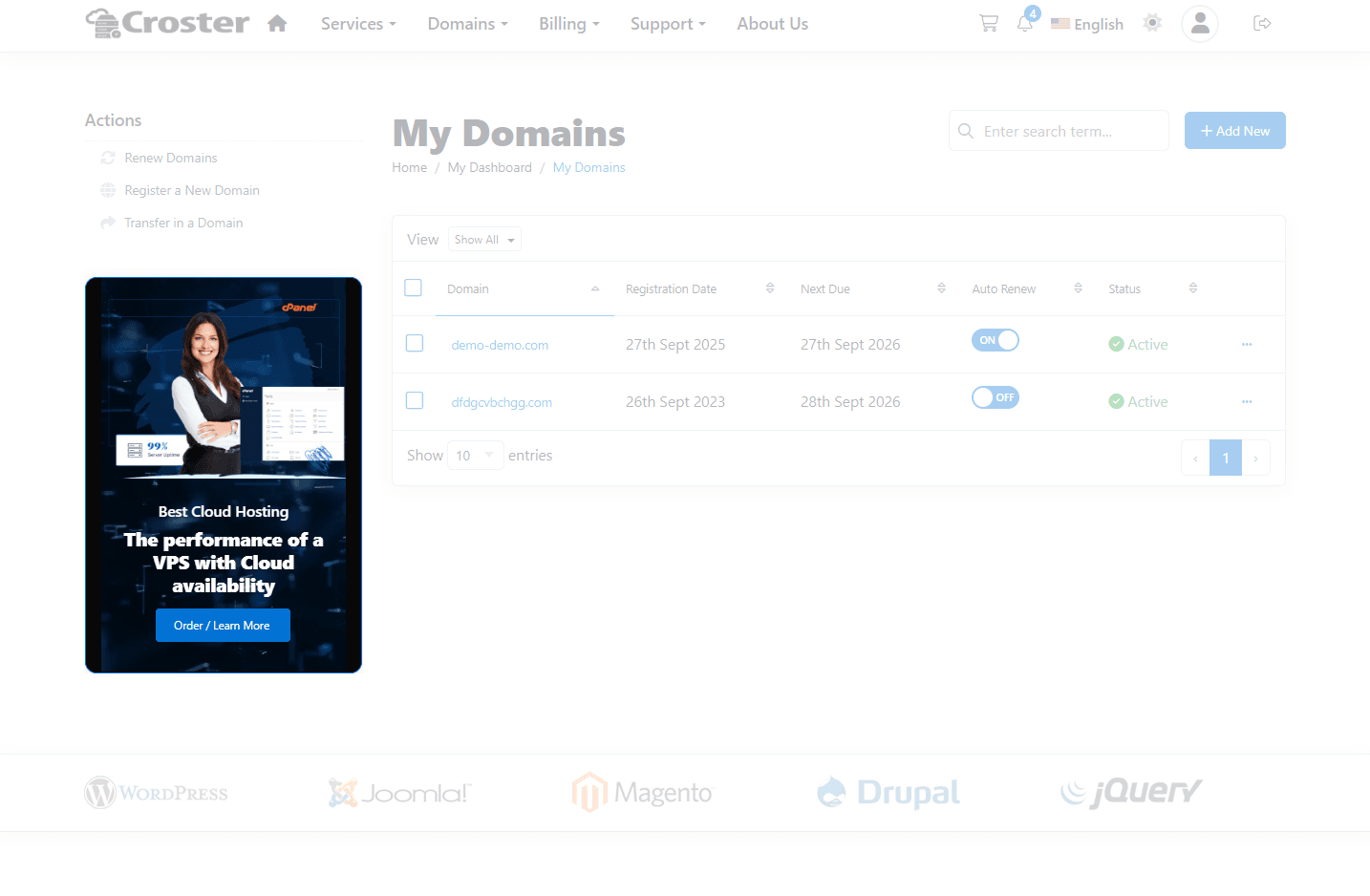
Preview - Domain List (My Domains)
Advanced Restrictions allow promotions to be shown only to clients who meet specific criteria.
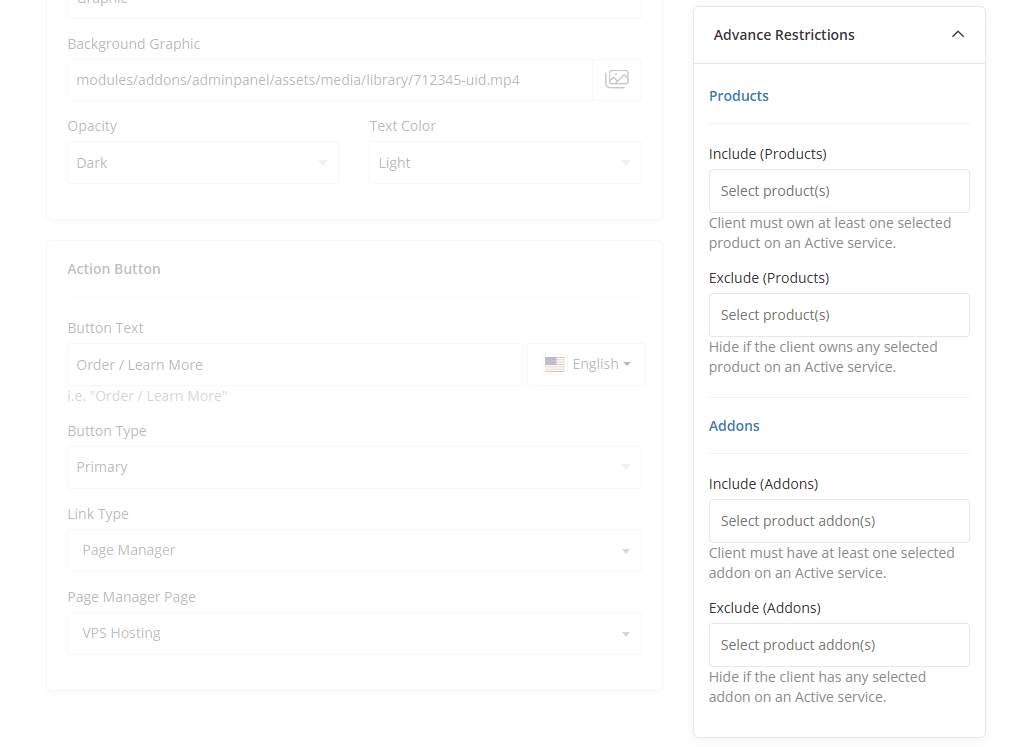
Include (Products)
Display the promotion only to clients who own one or more of the selected products with an active service.
Exclude (Products)
Hide the promotion from clients who own one or more of the selected products with an active service.
Include (Addons)
Display the promotion only to clients who own one or more of the selected addons with an active service.
Exclude (Addons)
Hide the promotion from clients who own one or more of the selected addons with an active service.
How Promotion Restrictions Work
Promotion restrictions can be combined to create highly targeted marketing campaigns.
Examples:
- Display an SSL promotion only to clients who do not already own an SSL Certificate.
- Display a Website Builder promotion only to hosting customers.
- Promote backup services only to clients who do not currently own a backup addon.
- Show upgrade promotions only to customers using specific products.
This allows you to present relevant offers to the right customers while avoiding unnecessary promotions for clients who already own the advertised service.