
Section Featured TLDs
The Featured TLDs Section allows you to showcase popular domain extensions with their pricing information. This section helps visitors quickly compare domain registration costs and encourages domain searches by highlighting commonly used TLDs such as .com, .net, .org, and country-specific extensions. Pricing is automatically retrieved from your WHMCS domain pricing configuration.
For a live example of the Featured TLDs Section, please visit the demo website.
The TLDs Settings section provides options to customize the appearance, pricing display, layout, and presentation of featured TLDs displayed within the section.
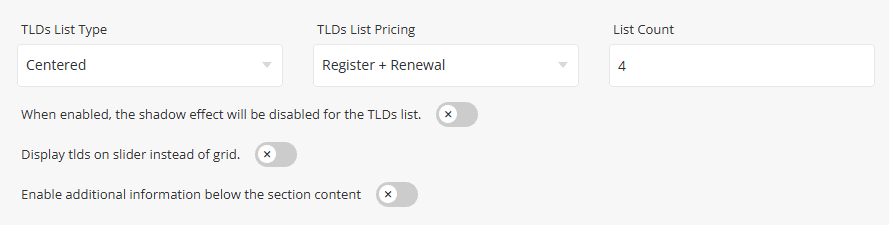
Select the layout used to display TLD items within the section.
Preview - Default

Preview - Centered

Preview - Small Inline

Select the domain pricing type displayed for all TLD items. Pricing is retrieved directly from the WHMCS Domain Pricing configuration. Available options include Register, Register + Renewal, Transfer, Transfer + Renewal, and Renewal pricing.
- List Count – Specify the number of TLD items displayed per row or within a single slider view.
- Disable Shadow Effect – When enabled, the shadow effect will be removed from all TLD items.
- Display TLDs as Slider – Enable this option to display TLD items in a slider layout instead of a grid layout.
- Slider Type – Select the slider navigation style used when TLD items are displayed in slider mode.
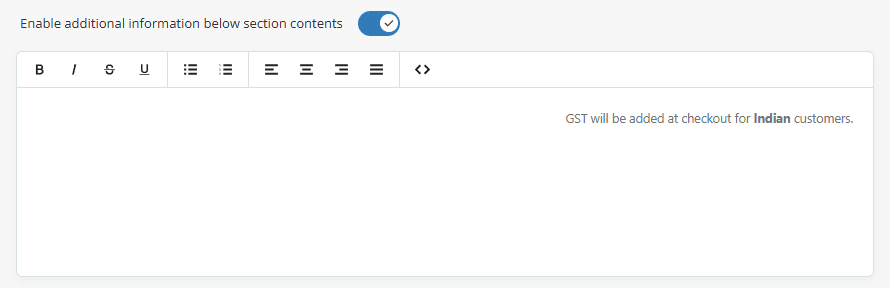
Enable Additional Information – Enable this option to display additional content below the TLD list.
When enabled, a text editor will appear, allowing you to add custom content such as notes, promotional messages, feature highlights, disclaimers, or any other information you want to display beneath the section, as shown in the screenshot below.
The TLDs Linked Page settings allow you to configure the destination page for the TLD action link. For detailed information about configuring Button Text, Button Link Type, and Link To options, please refer to the Items & Buttons Links documentation.
Preview - when TLDs linked page is enabled.
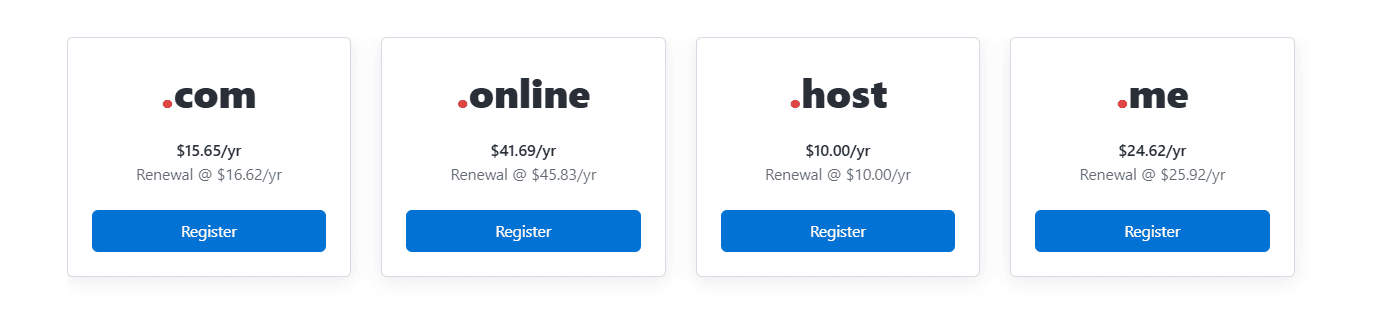
To add a new TLD item, click the [+] icon. To remove an existing TLD item, click the Delete icon next to the item you want to remove.
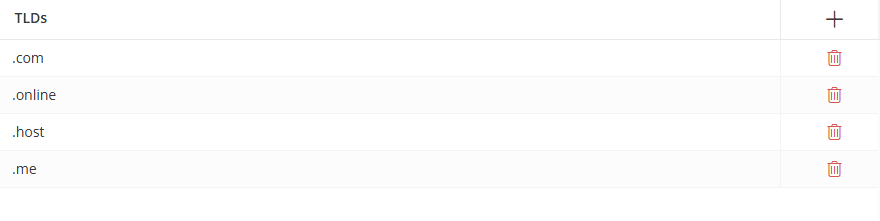
Click the [+] icon to add a new TLD item, or click any existing row to edit it. A dialog box will open, allowing you to configure the TLD item settings.
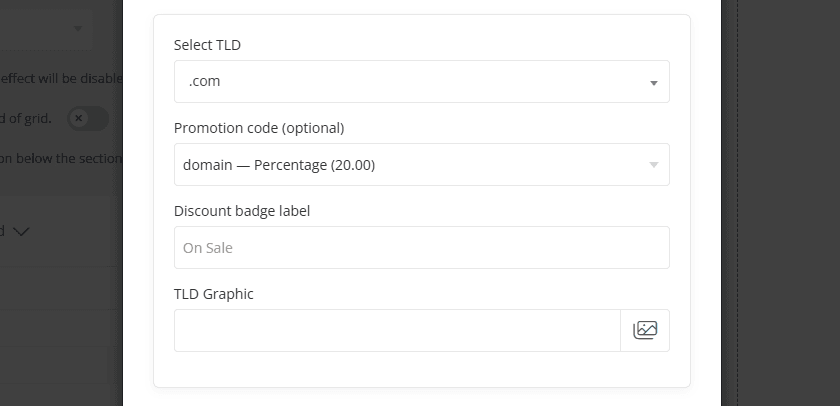
- Select TLD - Select the domain extension to display within the section. Only TLDs configured in the WHMCS Domain Pricing settings will be available for selection.
- Promotion Code - Select a promotion code to automatically display discounted pricing for the selected TLD. Only applicable promotion codes available for the chosen TLD will be displayed.
- Discount Badge Label - Enter the text displayed in the discount badge when a promotional discount is applied to the TLD. The default value is "On Sale".
- TLD Graphic - Upload or select a graphic to display in place of the TLD name.
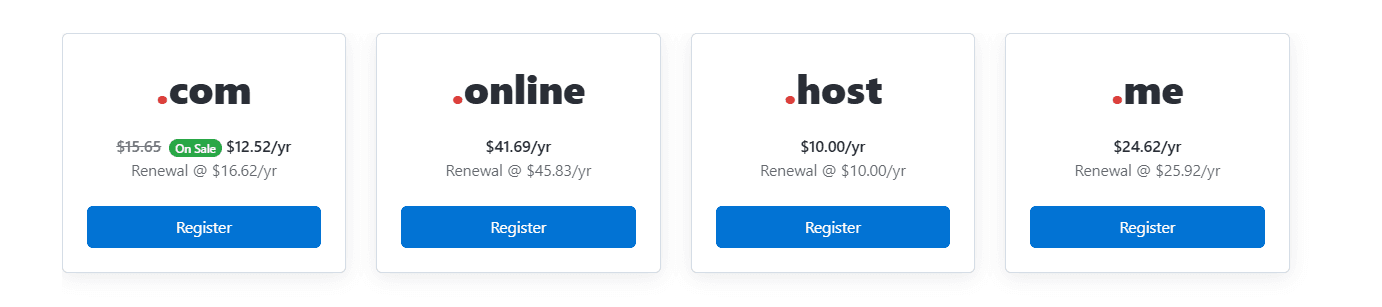
Preview - When Coupon is applied for .com TLD.
For information about other common options, such as Section Description, Section Styles, and Section Action, please refer to the Common Settings documentation.