
Section Team Members
The Team Members Section allows you to showcase your team, staff, leadership, or key personnel in a professional and visually appealing layout. Each team member can include a profile photo, name, designation, biography, and social media links to help visitors learn more about the people behind your organization.
For a live example of the Team Members Section, please visit the demo website.
The Team Members Settings section provides options to customize how team members are displayed within the section.

- Display Items as Slider - Enable this option to display items in a slider layout instead of a grid layout.
- Slider Type - Select the slider navigation style used when the slider layout is enabled.
Each team member can include a profile photo, designation, bio, and social media profile links.
To add a new team member, click the [+] icon. To remove an existing team member, click the Delete icon next to the member you want to remove.
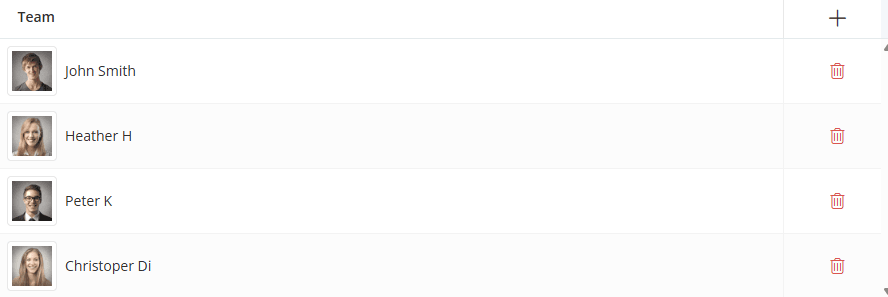
Click the [+] icon to add a new team member, or click any existing row to edit it. A dialog box will open, allowing you to configure the team member settings, as shown below.
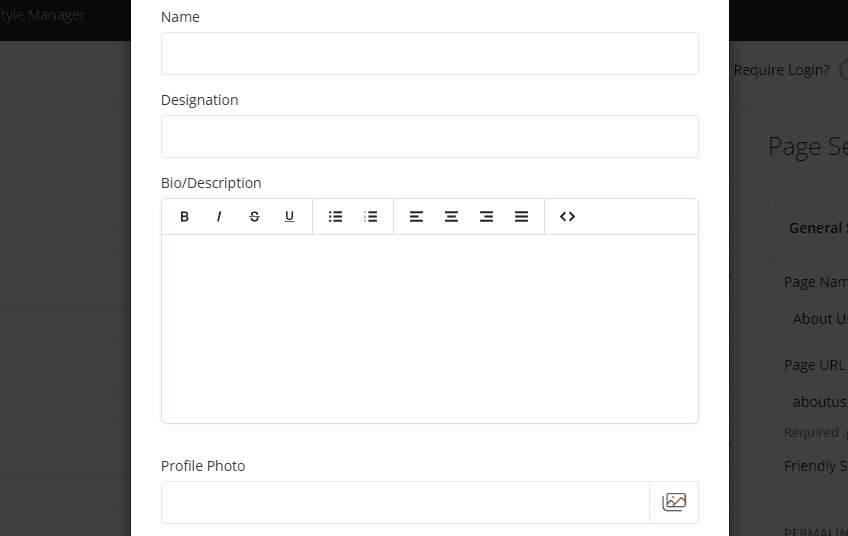
- Name - Enter the team member's name as it will be displayed within the section.
- Designation - Enter the team member's job title, position, or role, such as Chief Executive Officer, Sales Manager, or Lead Developer.
- Bio/Description - Enter information about the team member, including their experience, expertise, responsibilities, or professional background. Basic text formatting options are available using the editor toolbar. The content entered here is displayed within the team member profile dialog.
- Profile Photo - Upload or select an image representing the team member. For best results, use a high-quality square profile photo.
Preview - Team Members Section
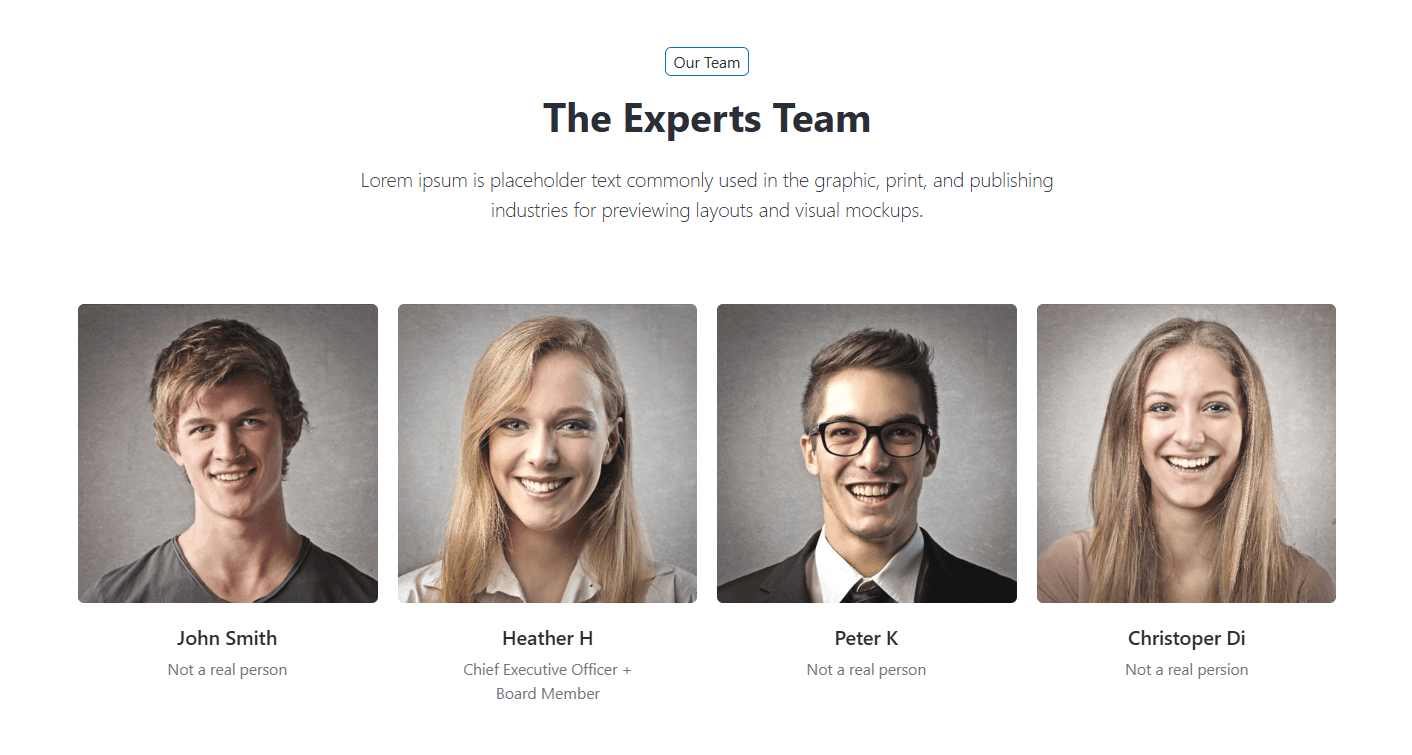
Hovering over a team member's profile photo reveals a profile action button. Clicking the button opens a dialog where visitors can view the team member's complete profile information and social media links.
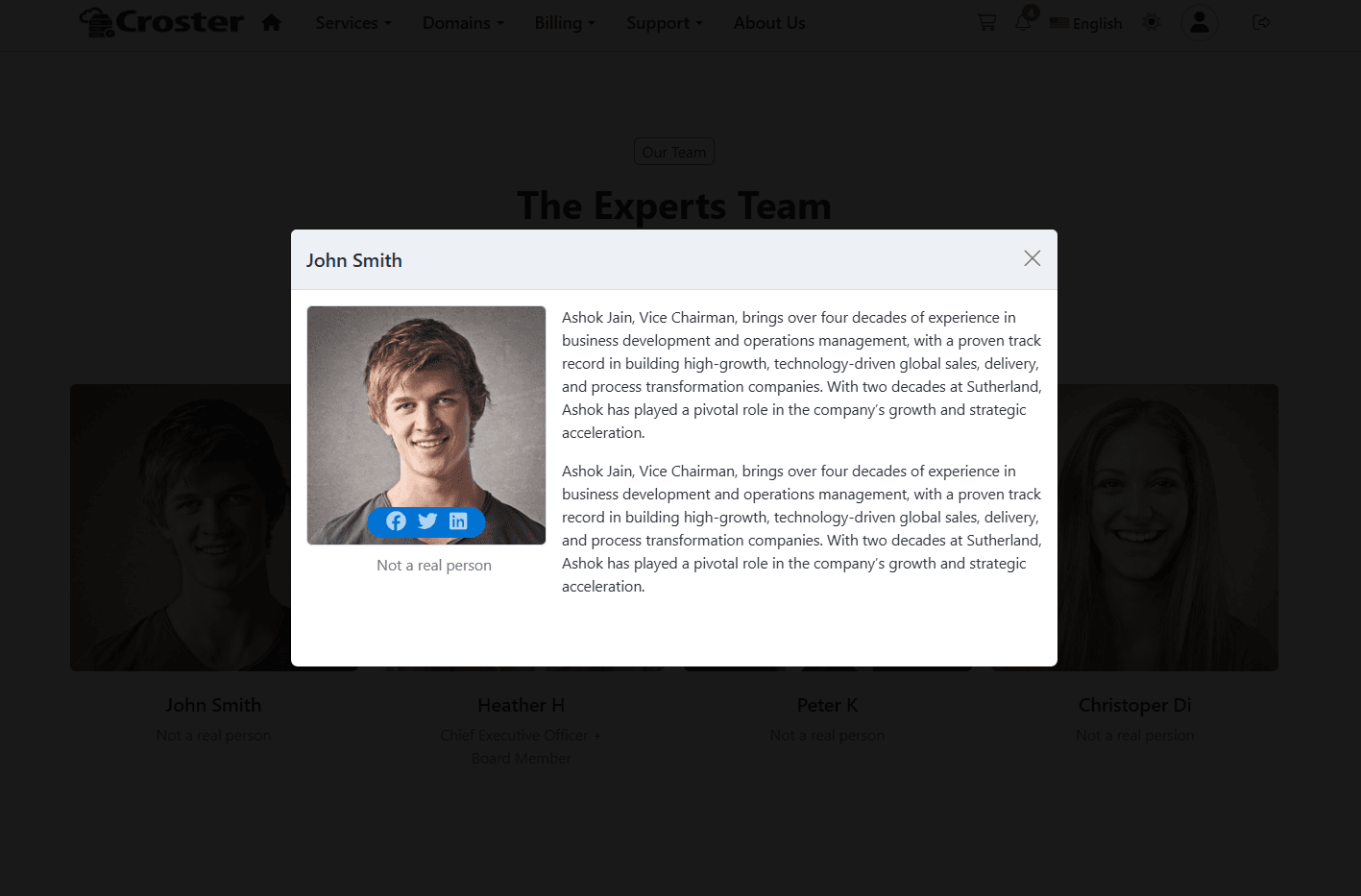
Note: The profile action button and profile dialog are only available when the team member's Bio/Description field contains content.
The Social Media Profile Links section allows you to display links to the team member's social media profiles. Leave any social media field empty if you do not want that social media icon to be displayed.
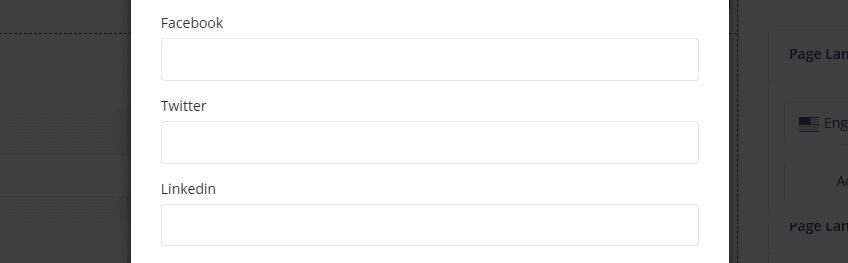
- Facebook - Enter the full URL of the team member's Facebook profile or page.
- Twitter - Enter the full URL of the team member's Twitter/X profile.
- LinkedIn - Enter the full URL of the team member's LinkedIn profile.
For information about configuring Section Description, Section Styles, Section Action, and other common options, please refer to the Common Settings documentation.