
Section Testimonials
The Testimonials Section allows you to showcase customer feedback, reviews, and success stories in an attractive and professional format. Testimonials help build trust, improve credibility, and provide social proof for your products and services.
For a live example of the Testimonials Section, please visit the demo website.
The Testimonials Settings section provides options to customize the appearance and display of testimonial items within the section.
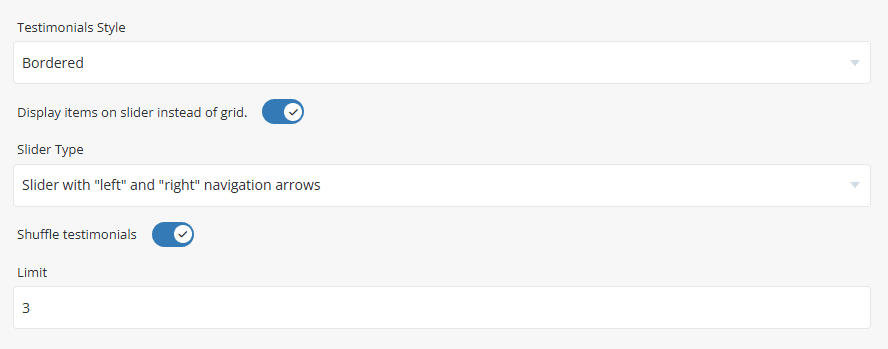
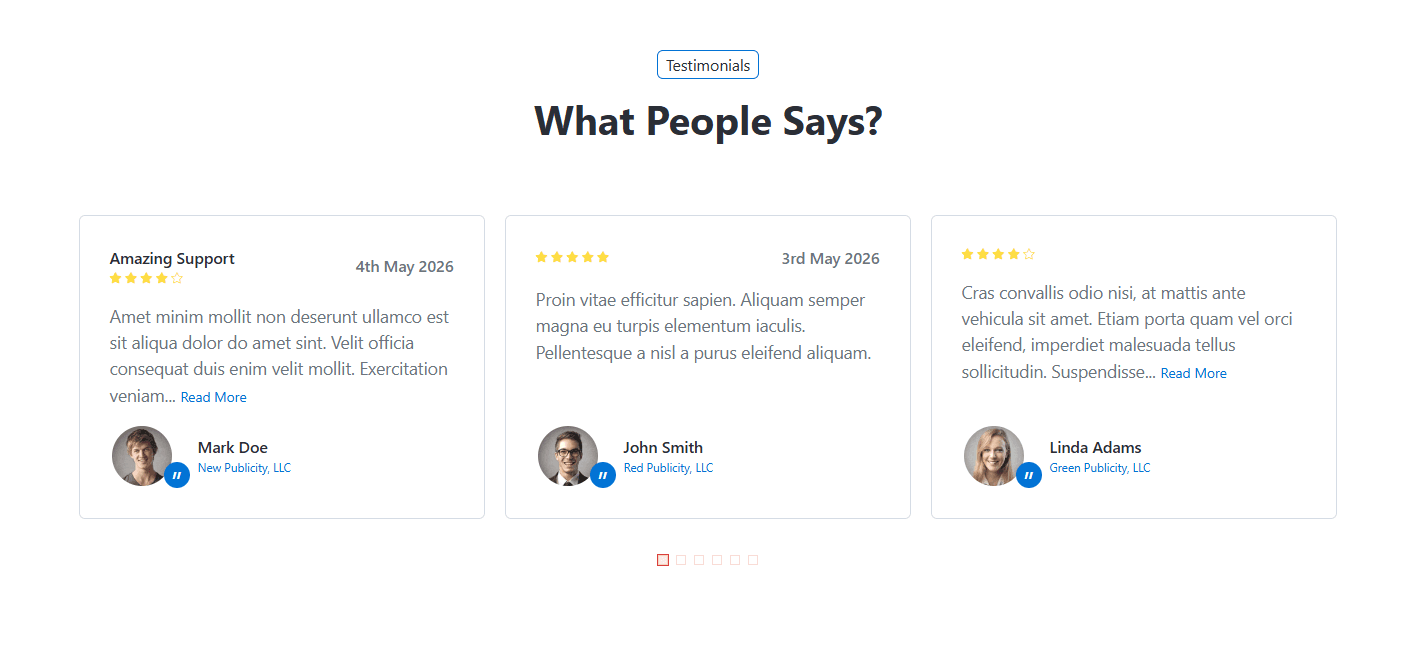
Select the visual layout used to display testimonial items within the section. Available options are: Default, Boxed, and Bordered.
Preview - Default
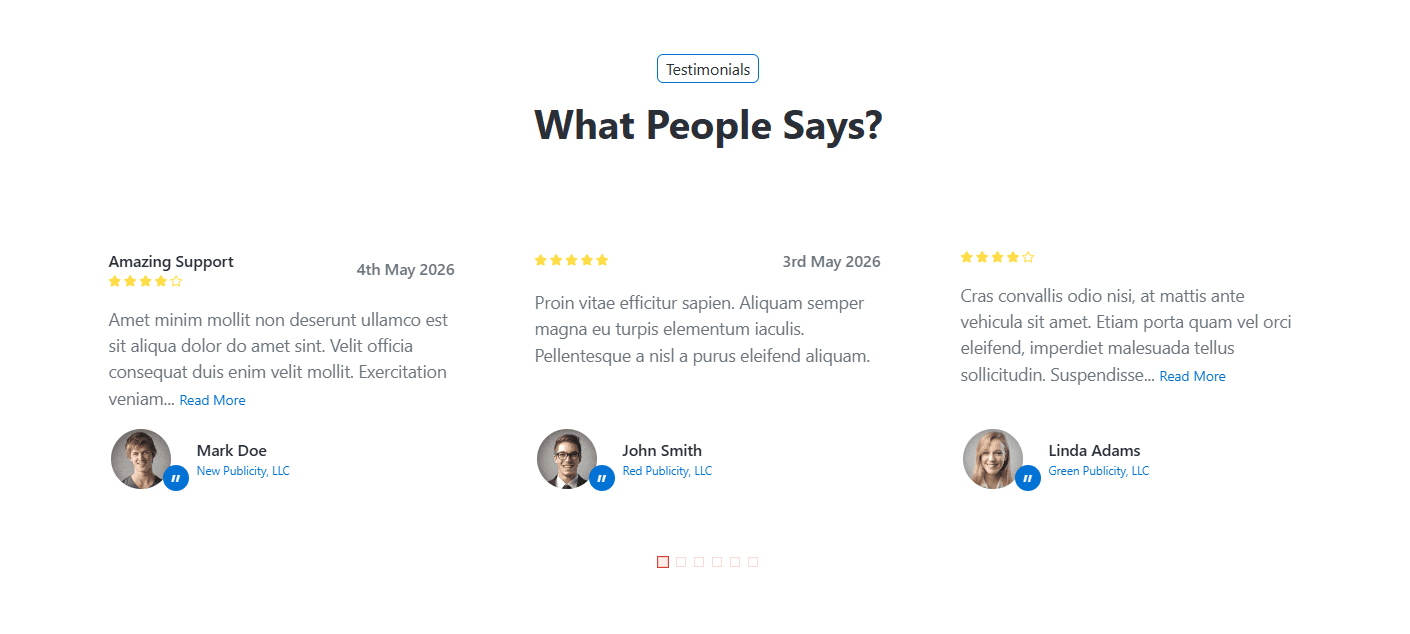
Preview - Boxed
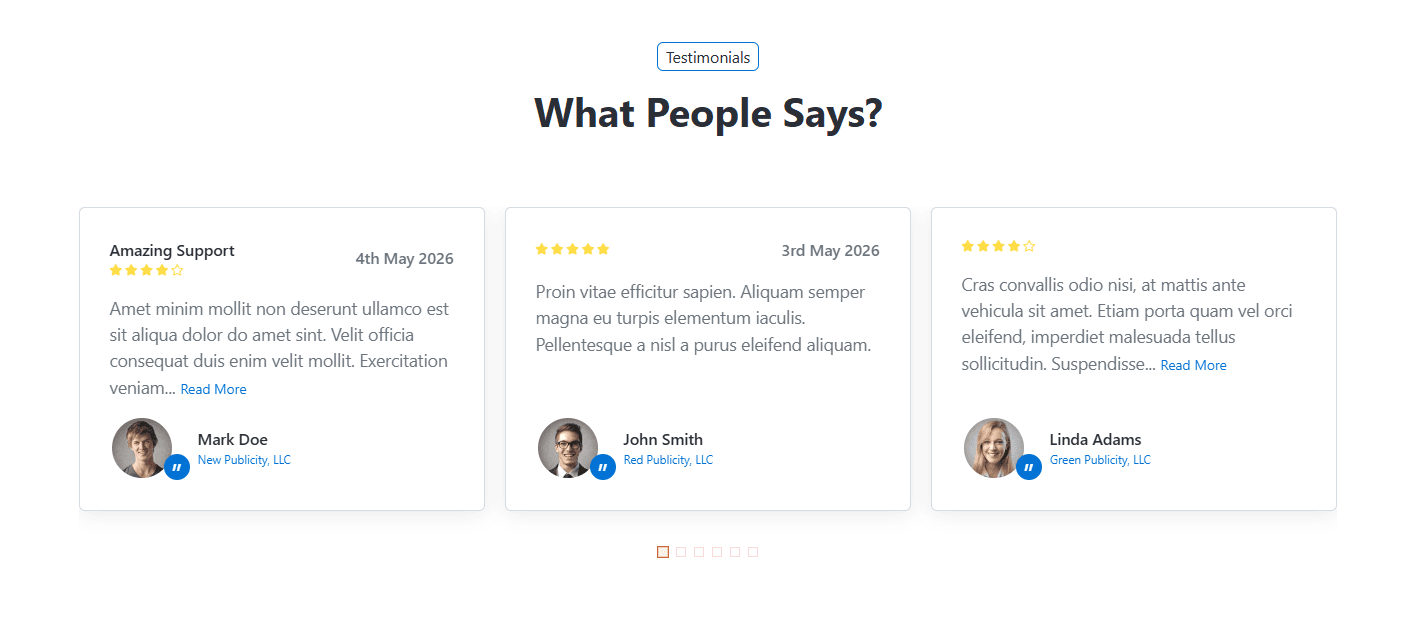
Preview - Bordered
- Display Items as Slider - Enable this option to display testimonial items in a slider layout instead of a grid layout.
- Slider Type - Select the slider navigation style used when the slider layout is enabled.
- Shuffle Testimonials - When enabled, testimonial items will be displayed in a random order each time the page is loaded. The section will display only the number of testimonials specified in the Limit field.
- Limit - Specify the maximum number of testimonial items displayed within the section.
How Shuffle Testimonials Works
When enabled, Croster randomly selects testimonial items each time the page is loaded. This helps showcase different customer reviews to visitors and keeps the testimonials section fresh for returning users.
The number of testimonials displayed is controlled by the Limit setting.
When the same Testimonials section is used across multiple pages, enabling this option can help reduce the repetition of identical testimonial content by displaying different reviews on different pages.
To add a new testimonial item, click the [+] icon. To remove an existing testimonial item, click the Delete icon next to the item you want to remove.
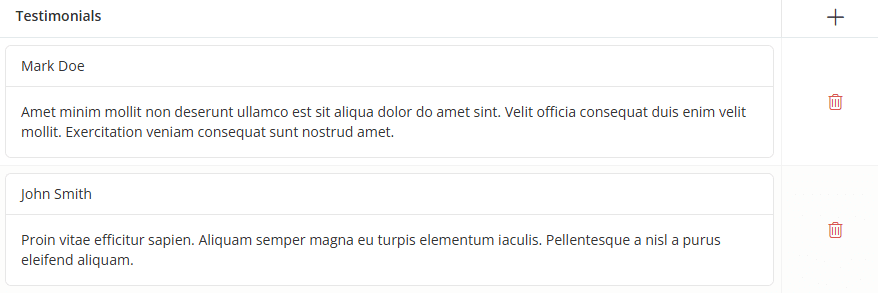
Click the [+] icon to add a new testimonial item, or click any existing row to edit it. A dialog box will open, allowing you to configure the testimonial item settings, as shown below.
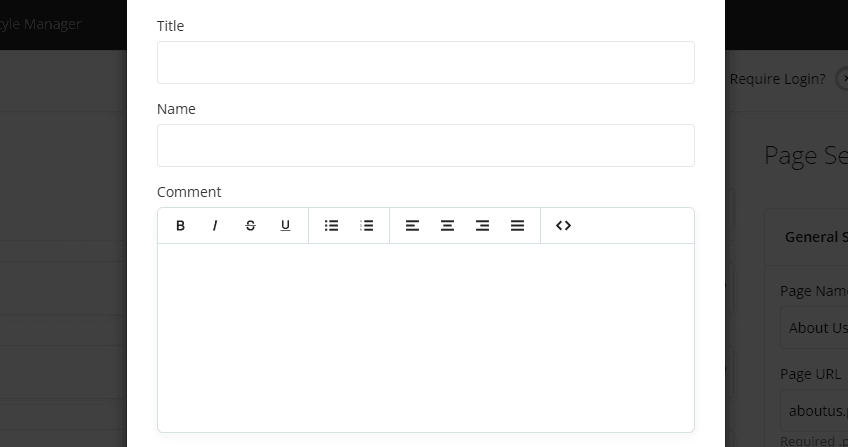
- Title - Enter the testimonial heading or review title displayed with the testimonial item.
- Name - Enter the name of the customer, client, or person providing the testimonial.
- Comment - Enter the testimonial content or review text. Basic text formatting options are available using the editor toolbar. When the content exceeds 150 characters, it is automatically truncated and a "Read More" link is displayed. Clicking the link opens a dialog window containing the full testimonial.
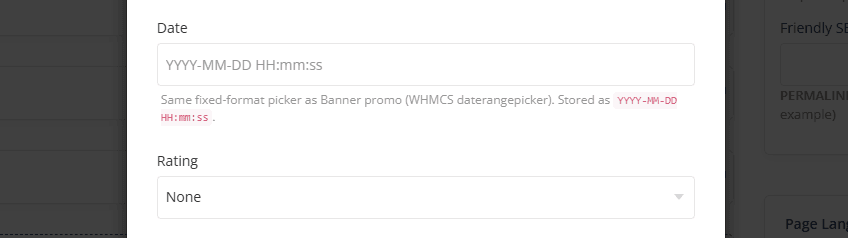
- Date - Optionally specify the testimonial date displayed with the testimonial item.
- Rating - Select the rating value displayed for the testimonial.
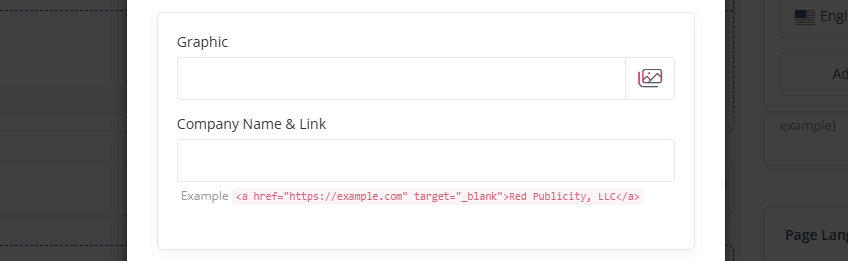
- Graphic - Upload or select an image for the testimonial author, such as a profile photo, avatar, or company logo.
- Company Name & Link - Enter the author's company name and optionally include a clickable link. HTML links are supported.
For information about configuring other common options, such as Section Description, Section Styles, and Section Action, please refer to the Common Settings documentation.