General Settings
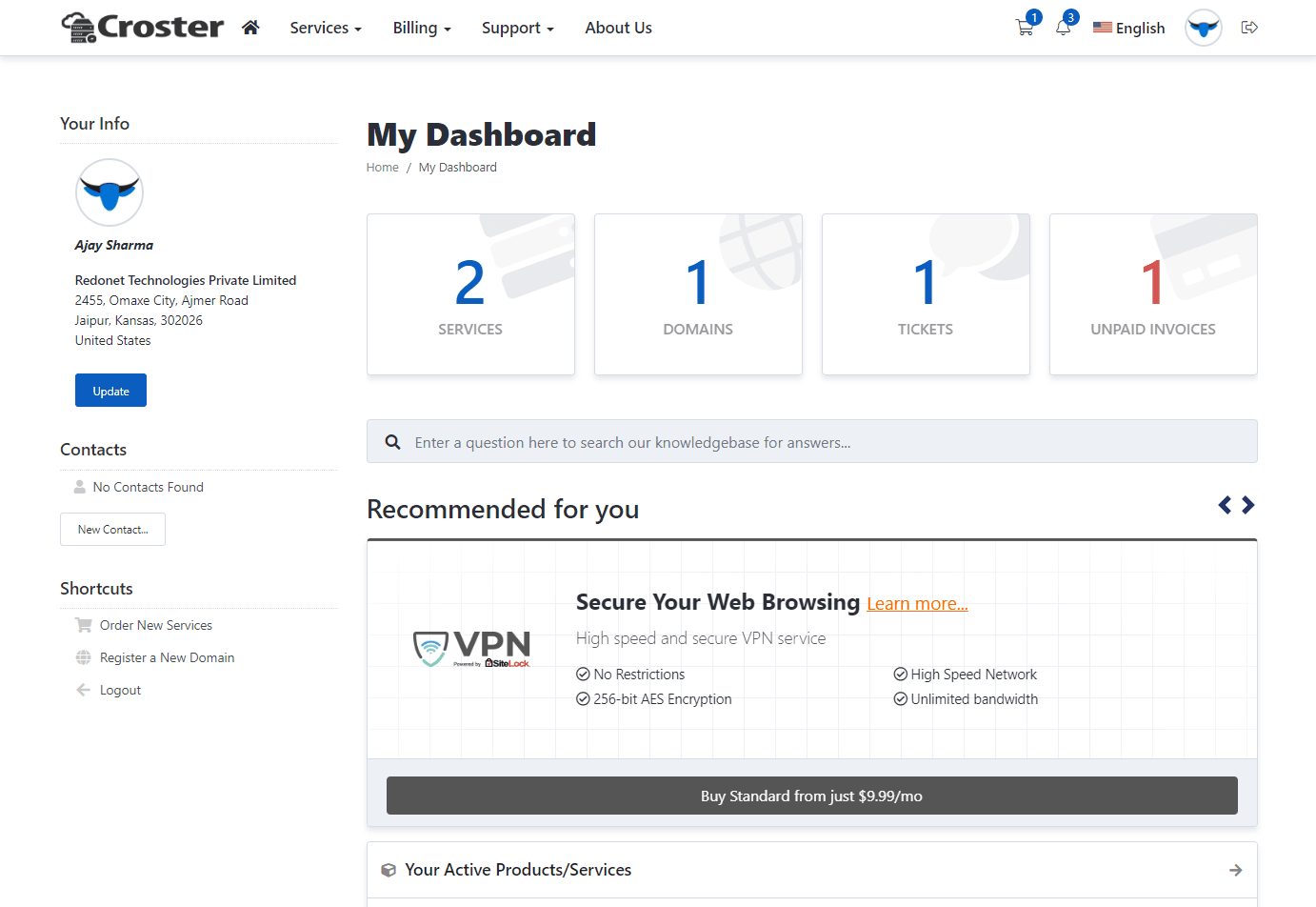
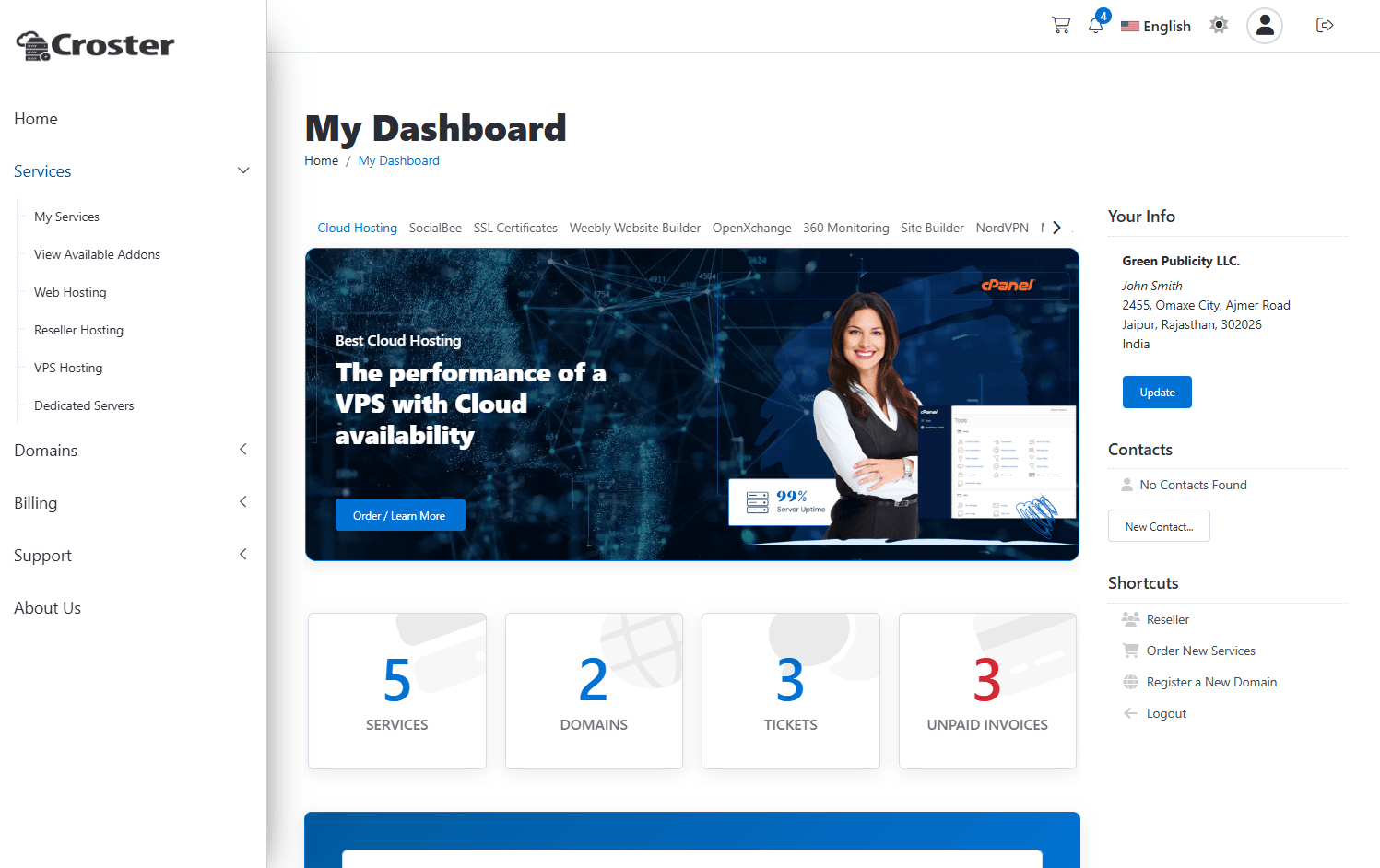
There are two types of layout options, 'Default' and 'Left', available to use according to your preference.
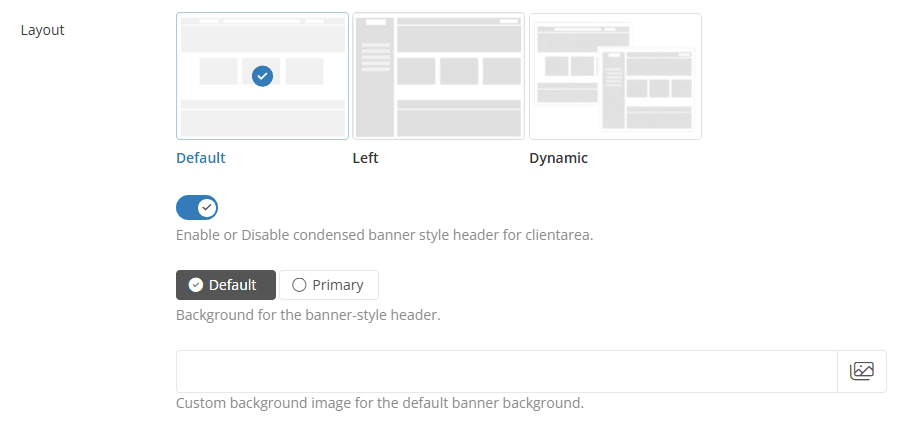
Default
Left Layout
Dynamic
Public pages can automatically use the default layout while Client Portal pages switch to the left layout.
Condensed banner style header
In both layouts, you can enable a banner-style header for the client area, as shown in the screenshot below. Once enabled, you will have the option to choose between 'Default' and 'Primary' styles for the banner background. In the 'Default' background style, you can easily change the header image.
Default (Bannered Layout)
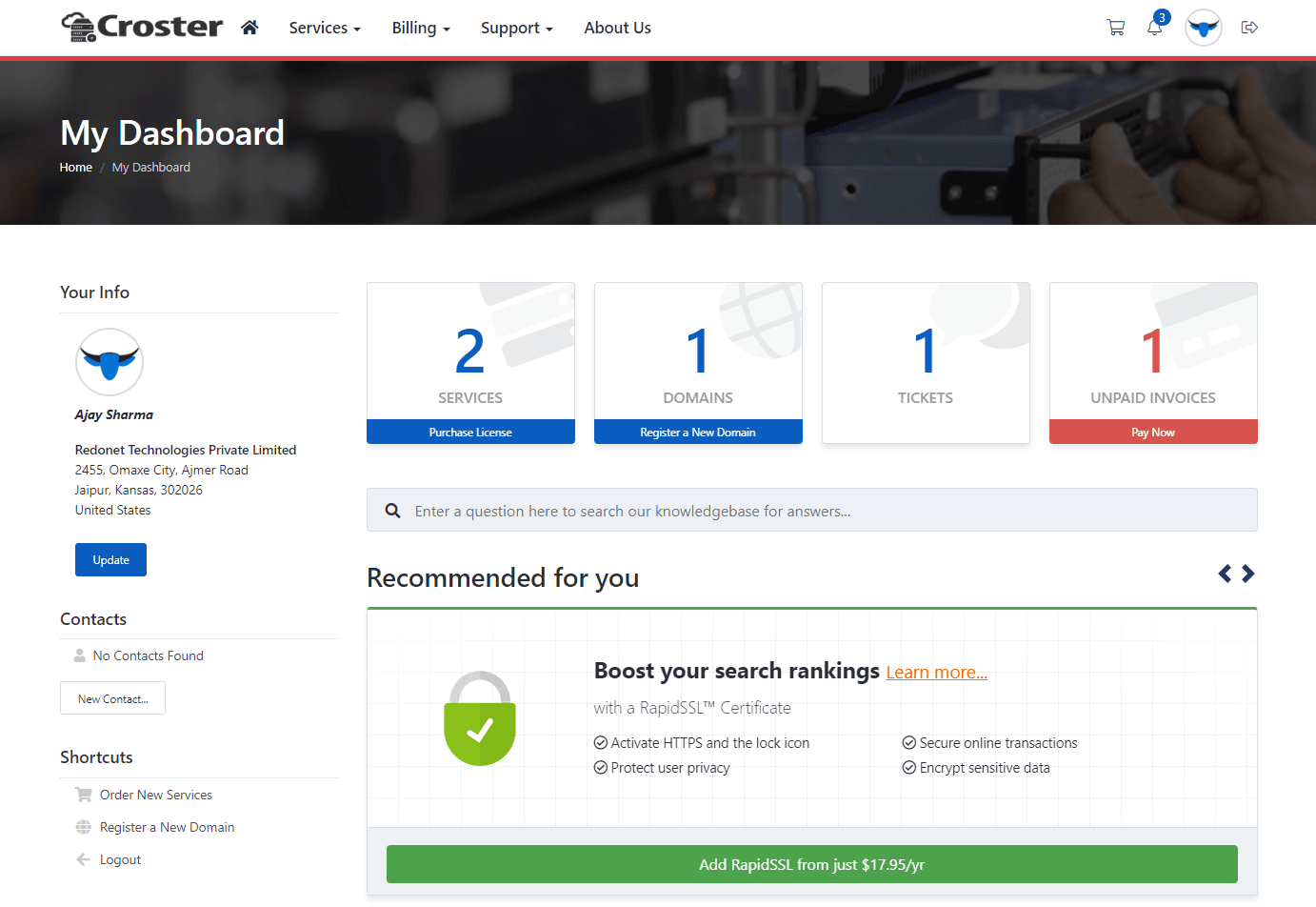
Primary (Bannered Layout)
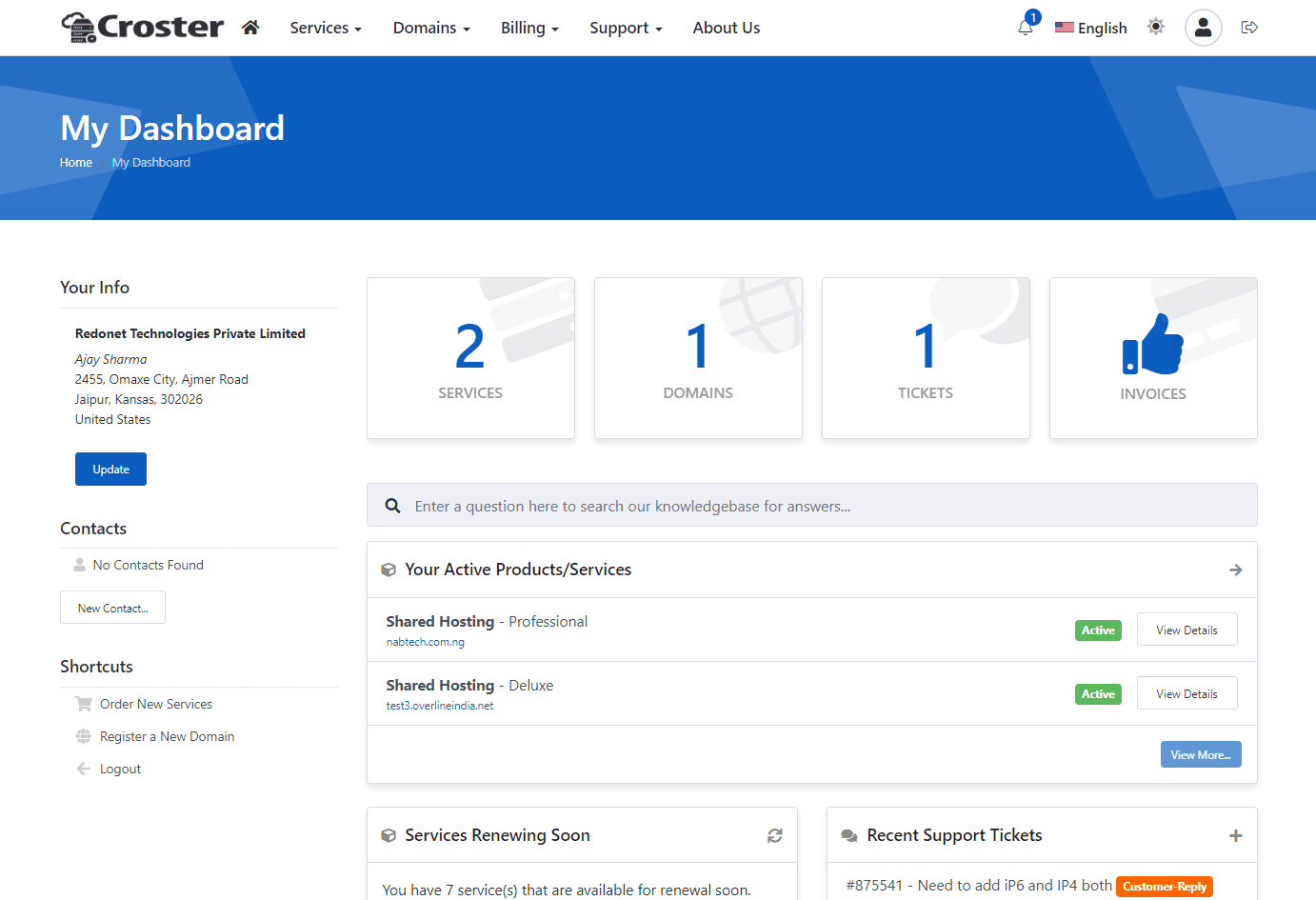
By enabling this option, your users can switch between Light and Dark modes using the theme switcher on the website header.


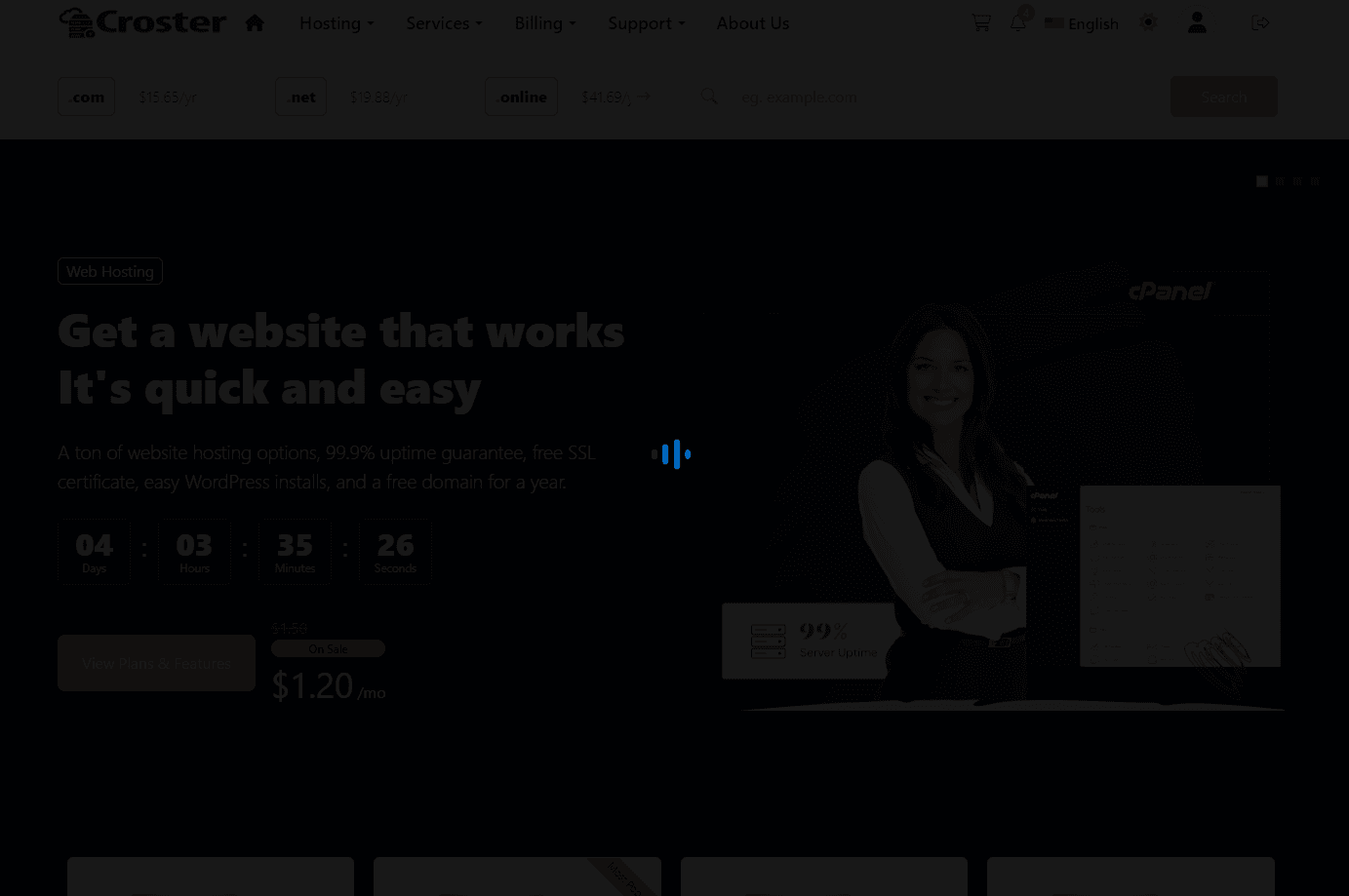
Enable the Pre Loader to display a loading animation on the website while the page reloads.

You can enable or disable Shadow and border radius for entire website by using below options.

- You can enable or disable shadow effect in panels or make them flat bordered in entire client area including order form from here
- You can enable or disable border radius for entire website here.
When enable, this will show Friendly SEO URL option for each pages in Page Manager.

If you are using LiteSpeed server, you have to be aware that this type of servers require server restart after every change/added in SEO-Friendly URLs, which implement changes to the htaccess file.
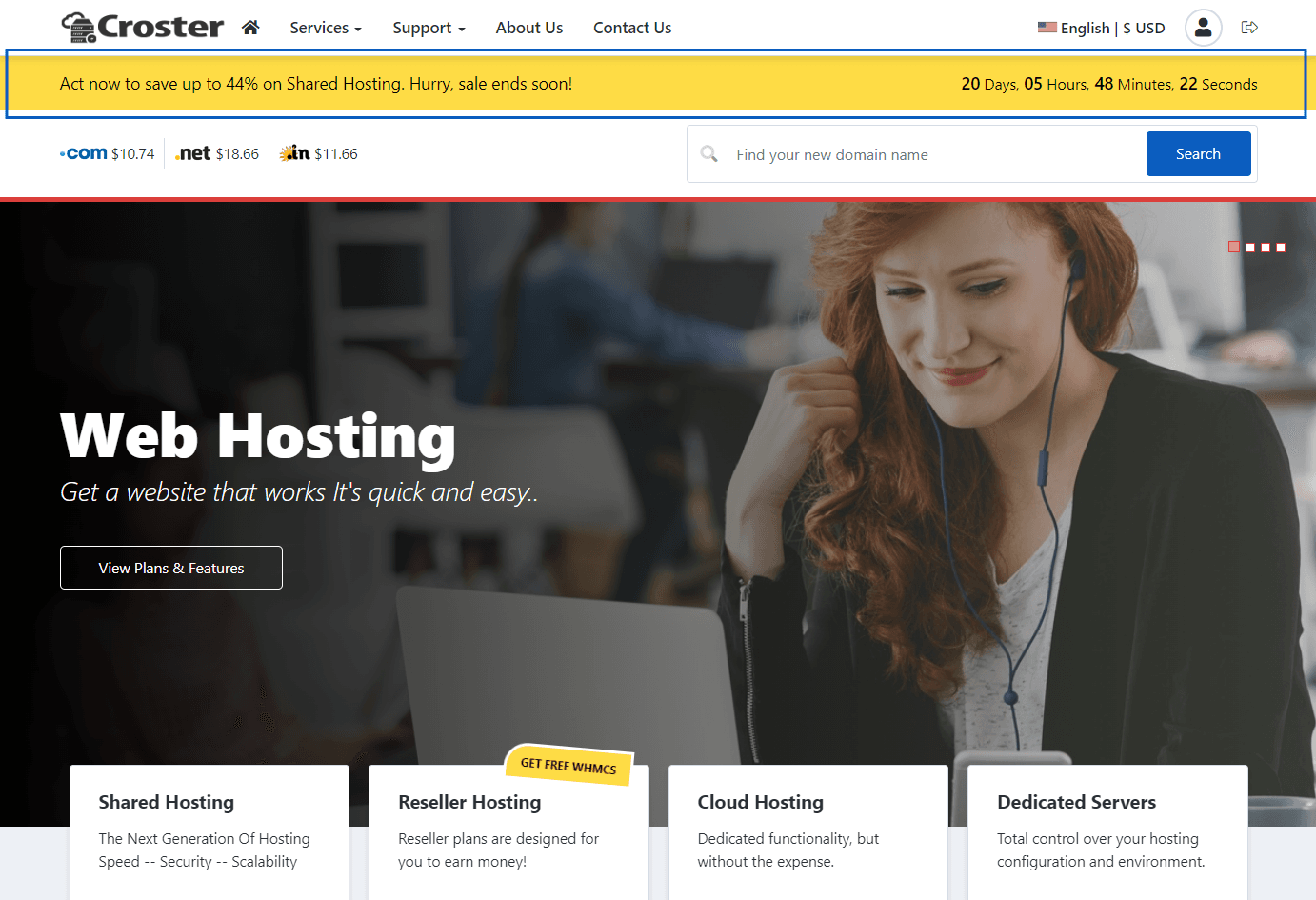
Enable this option to show a promotion banner under the website header area to inform your offer. You can configure its visibility, set an end date with a counter, change the banner colors, and it supports multiple languages.
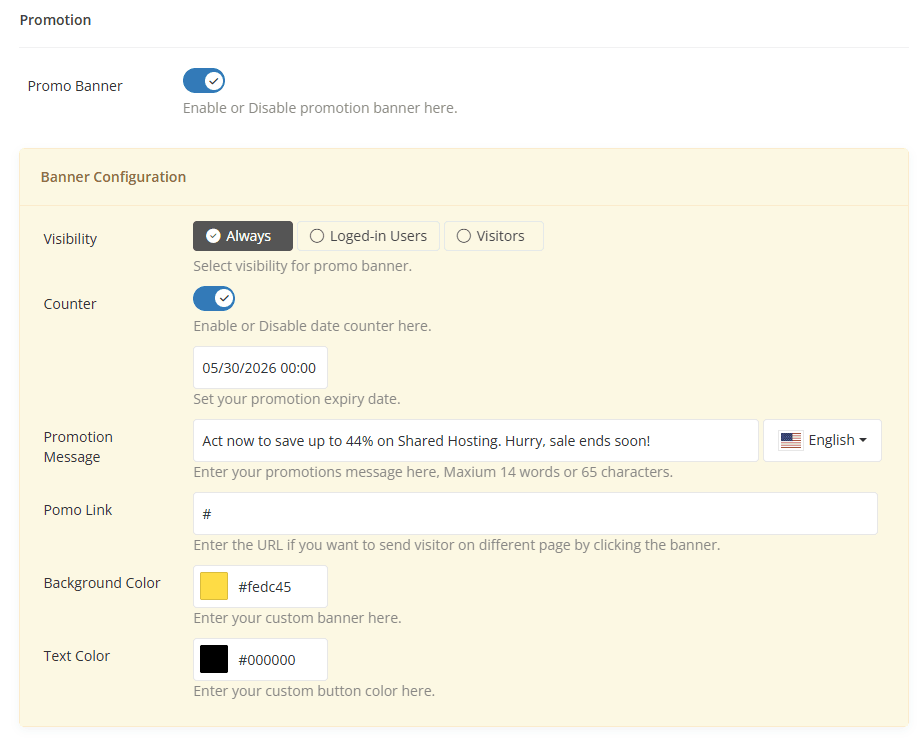
When enabled, this option will show a promotion banner under the website header area, as shown in the preview below:
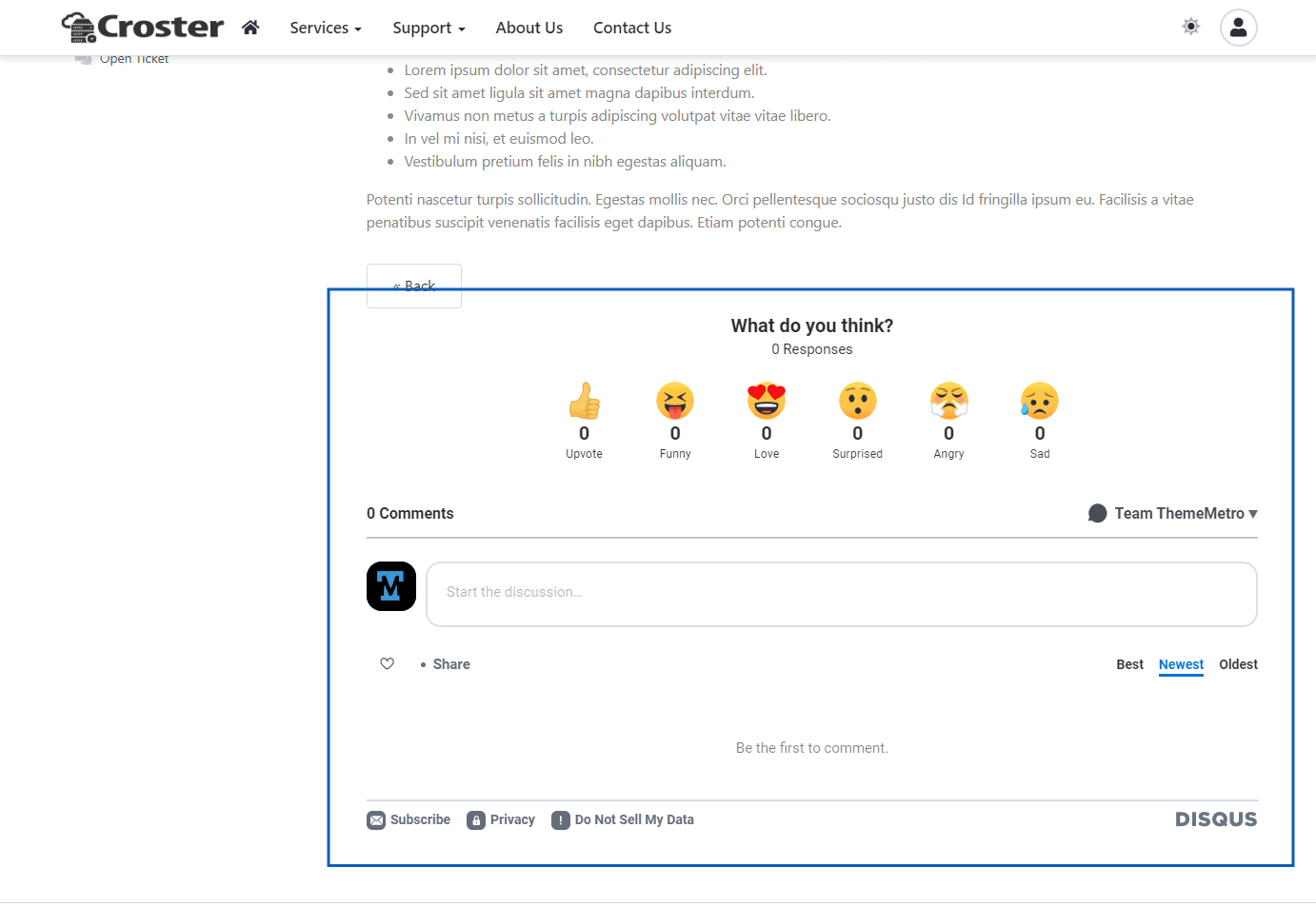
Add your Disqus username to enable the Disqus comments section in WHMCS Announcements and Knowledgebase articles.