
Documentation
Page Manager
Page Manager
The Croster Page Manager allows you to create, customize, and manage website pages using a flexible collection of content sections. By combining different section types, you can build unique landing pages, service pages, company pages, and promotional content without modifying theme files.
This article delves into the various section types available, enabling you to design dynamic and engaging web pages. Discover how to leverage these flexible building blocks to create a distinctive online presence that truly connects with your audience.
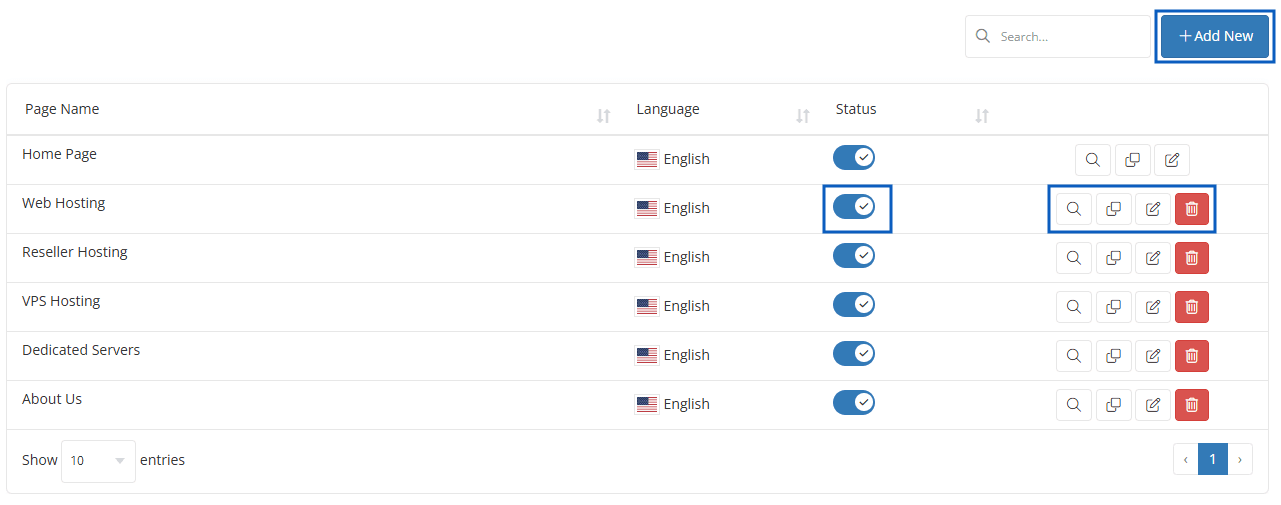
Add New - Gives you the possibility to create a page.
Status - Quick publish or un-publish the page.
Actions:
- "Preview" - From this button, you can preview the page.
- "Clone" - By using this button, you can clone the page.
- "Edit" - Allows you to edit the current page.
- "Delete" - will remove the page. This action CANNOT be undone!

- Back: By clicking this icon, you can return to the page list.
- Publish: Enable this option if you are ready to publish the page.
- Require Login: Enable this option if you want to make the page visible only to existing clients. Enabling this option will require users to log in before accessing the page.
- Preview: By using the Preview button, you can view the live page after it has been published and saved.
- Save: Click the Save button to save the page.